 Diskfern
A comparison from the makers of Diskfern
Diskfern vs macOS Storage settings
macOS Storage settings provides an included overview and recommendations. Diskfern is a separate app for investigating the folders behind disk usage.
Last fact-checked:
How we compared these optionsShort answer
Choose macOS Storage settings
Choose macOS Storage settings if you need a quick included overview, large-document review or Apple's optimization recommendations.
free up storageChoose Diskfern
Choose Diskfern if the category totals leave you needing folder-level maps, name search across a scan or named developer categories.
storage viewsdeveloper categoriescleanup workflowImportant context: Storage settings is a built-in alternative, not a separately purchased competing product. Start there if a category overview answers your question.
About this comparison
This comparison is published by Diskfern. Competitor information is based on publicly available vendor websites and documentation and was checked on the date shown. We highlight where each product may be a better fit rather than naming a universal winner.
Diskfern is not affiliated with, sponsored by, or endorsed by the products or companies mentioned on this page. Product names and trademarks belong to their respective owners.
Apple, Mac and macOS are trademarks of Apple Inc. Diskfern is an independent product and is not affiliated with or endorsed by Apple Inc.
How to read the evidence
Competitor details come from vendor documentation; Diskfern details come from our product information. Recommendations interpret those workflows. We did not run head-to-head tests or independently audit privacy or safety. A feature we could not verify is marked as not documented, which does not mean it is absent. Pricing and requirements can change.
Diskfern is coming soon. Explore its features and pricing before deciding which workflow fits your Mac.
pricingrequirementsDisk Advisor · On-device AI
Understand a file before you remove it.
Diskfern can explain what a file is, why it’s taking space, and whether it’s safe to remove. Your questions and answers stay on your Mac.
Requires macOS 26+ and an eligible Mac with Apple Intelligence enabled and its model ready. Core storage analysis works without it.
AI answers can be wrong or unavailable. Use them as guidance and review the file before removing it.
requirementslocal analysisperformance and availability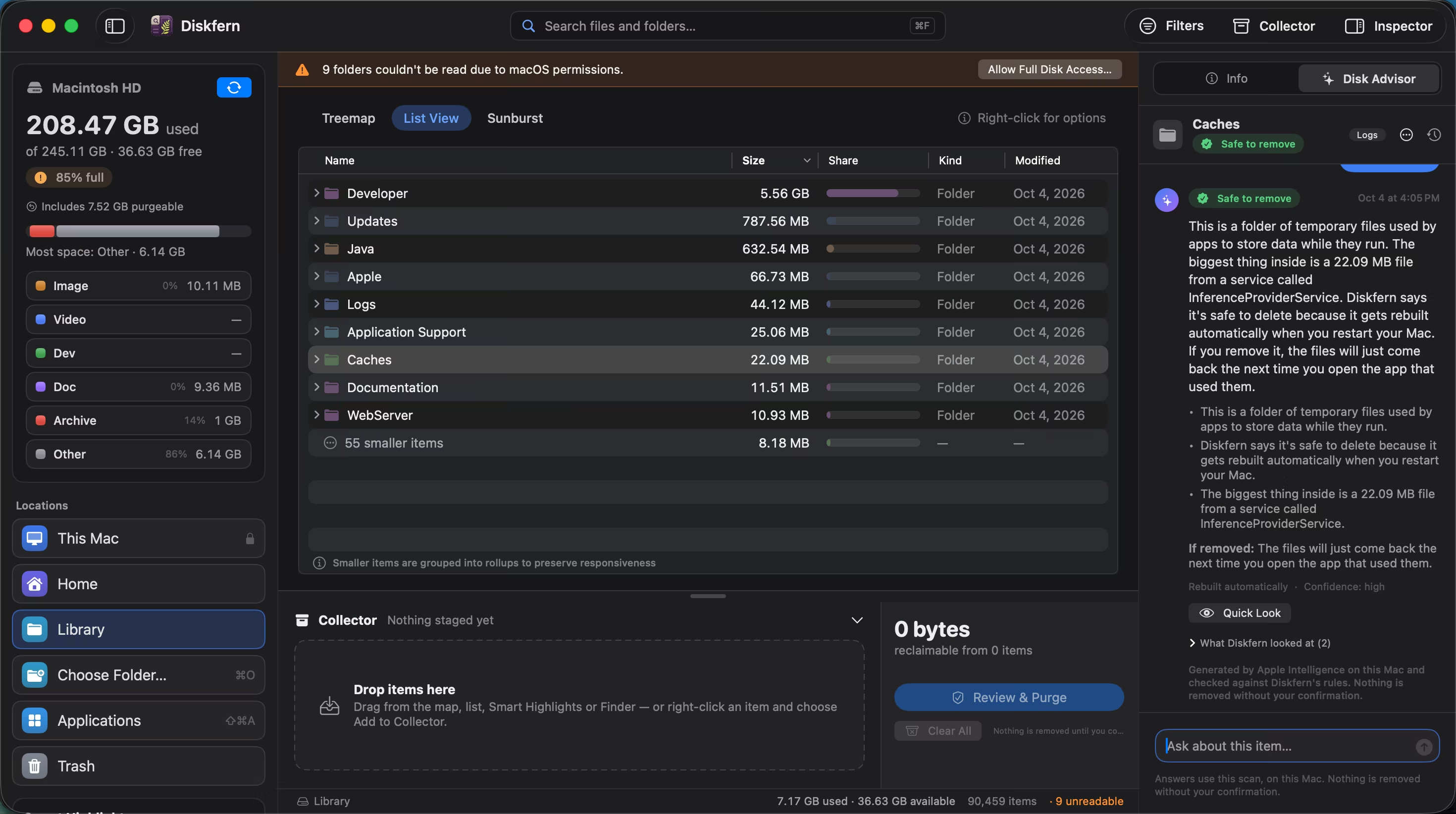
Quick decision guide
| If you want… | Consider |
|---|---|
| An overview without another app | macOS Storage settings |
| Apple storage recommendations | macOS Storage settings |
| Large documents and downloads by size | Start with macOS Storage settings |
| Underlying folders and developer categories | Diskfern |
Choose by your workflow; feature details and sources follow below.
At a glance
Compare the workflows that matter to you. On a small screen, scroll the table horizontally.
| Dimension | macOS Storage settings | Diskfern |
|---|---|---|
| Best for | A built-in overview and Apple storage recommendations. free up storage | Folder-level storage exploration with named categories and review before cleanup. storage viewsdeveloper categories |
| Main interface | Category totals with management dialogs and a Documents file browser. find and delete files | Treemap, sortable list and sunburst, with shared navigation. storage views |
| Large-file discovery | Documents includes Large Files, Downloads and sorting by size. find and delete files | Size filters and largest-item exploration across scanned folders. storage views |
| Search | A Storage-settings-wide filename index; Finder is a separate option: not documented in the vendor sources reviewed. find and delete files | Name search across scan results; folder scope and kind filters. storage views |
| Quick Look / preview | A Quick Look workflow specifically inside Storage settings: not documented in the vendor sources reviewed. find and delete files | Native Quick Look, Finder reveal and item details. storage views |
| Cleanup workflow | Selected categories allow file or app deletion; some open the owning app. Don't assume every category uses Trash. find and delete files | Collector → review → authentication → Trash by default. Explicit permanent deletion is available; preferences can change the default. cleanup workflow |
| Safety and context | System applications excluded from app management; System Data is managed by macOS rather than a blanket delete control. find and delete files | Safe / Review / Protected labels and protected-path checks. Rebuildable does not mean cost-free to recreate. developer categoriescleanup workflow |
| Developer storage | Named multi-tool developer cache classification in Storage settings: not documented in the vendor sources reviewed. find and delete files | Named Xcode, Node.js, Android, Docker and model-storage categories; keep project data under review. developer categories |
| App uninstall | Applications category allows managing installed non-system apps. find and delete files | Selected app bundles can be removed. Running apps, system apps and Diskfern itself are guarded. Full leftover removal is not established. cleanup workflow |
| Duplicate finder | A general duplicate-file finder in Storage settings; features in other Apple apps are separate: not documented in the vendor sources reviewed. find and delete files | Duplicate matching is not currently available. Choose a tool with documented duplicate matching if that is your main requirement. performance and availability |
| On-device assistant | A storage-specific on-device chat in Storage settings: not documented in the vendor sources reviewed. find and delete files | Diskfern can explain what a file is, why it’s taking space, and whether it’s safe to remove. Your questions and answers stay on your Mac. Requires macOS 26+ and an eligible Mac with Apple Intelligence enabled and its model ready. Core storage analysis works without it. AI answers can be wrong or unavailable. Use them as guidance and review the file before removing it. requirementslocal analysisperformance and availability |
| Privacy / local processing | Local storage overview; optional iCloud recommendations involve cloud storage. free up storageoptimize storage | Scanning and Disk Advisor run locally on your Mac. local analysis |
| Broader tools | Storage optimization and Apple-media/iCloud recommendations. optimize storage | Focused on storage analysis and cleanup. Data recovery and malware scanning are outside its scope. storage views |
| Pricing and trial | Included with macOS · Built-in. No separate application purchase; optional additional iCloud storage has separate charges. free up storage | Free analysis: coming soon. Pro and Family cleanup plans: coming soon. pricing |
| macOS and processors | Part of the macOS installed on your supported Mac; current System Settings path applies to macOS 13+. Earlier releases use a different path. No separate app CPU requirement. free up storage | Core: macOS 14+, Intel and Apple silicon. Advisor additionally needs macOS 26+ and eligible, enabled Apple Intelligence. requirements |
Where macOS Storage settings makes sense
Start with what's already installed
For a straightforward overview, Storage settings avoids an extra download. Its category dialogs can be enough to locate a large download or review installed apps.
free up storagefind and delete filesApple's own optimization controls
Storage recommendations connect to Apple's media and iCloud workflows. Those controls can be useful when you want the operating system to manage supported storage rather than inspect every folder manually.
optimize storageWhere Diskfern differs
Diskfern combines treemap, list and sunburst views with name search, Quick Look, named categories and safety labels. Its Collector gathers potential removals for review. Trash is the default destination, with an explicit permanent option and a preference override.
Duplicate matching is not currently available. Disk Advisor requires macOS 26+ and eligible, enabled Apple Intelligence; AI guidance can be wrong. Review important files before removing them.
storage viewscleanup workflowrequirementsSee how Diskfern works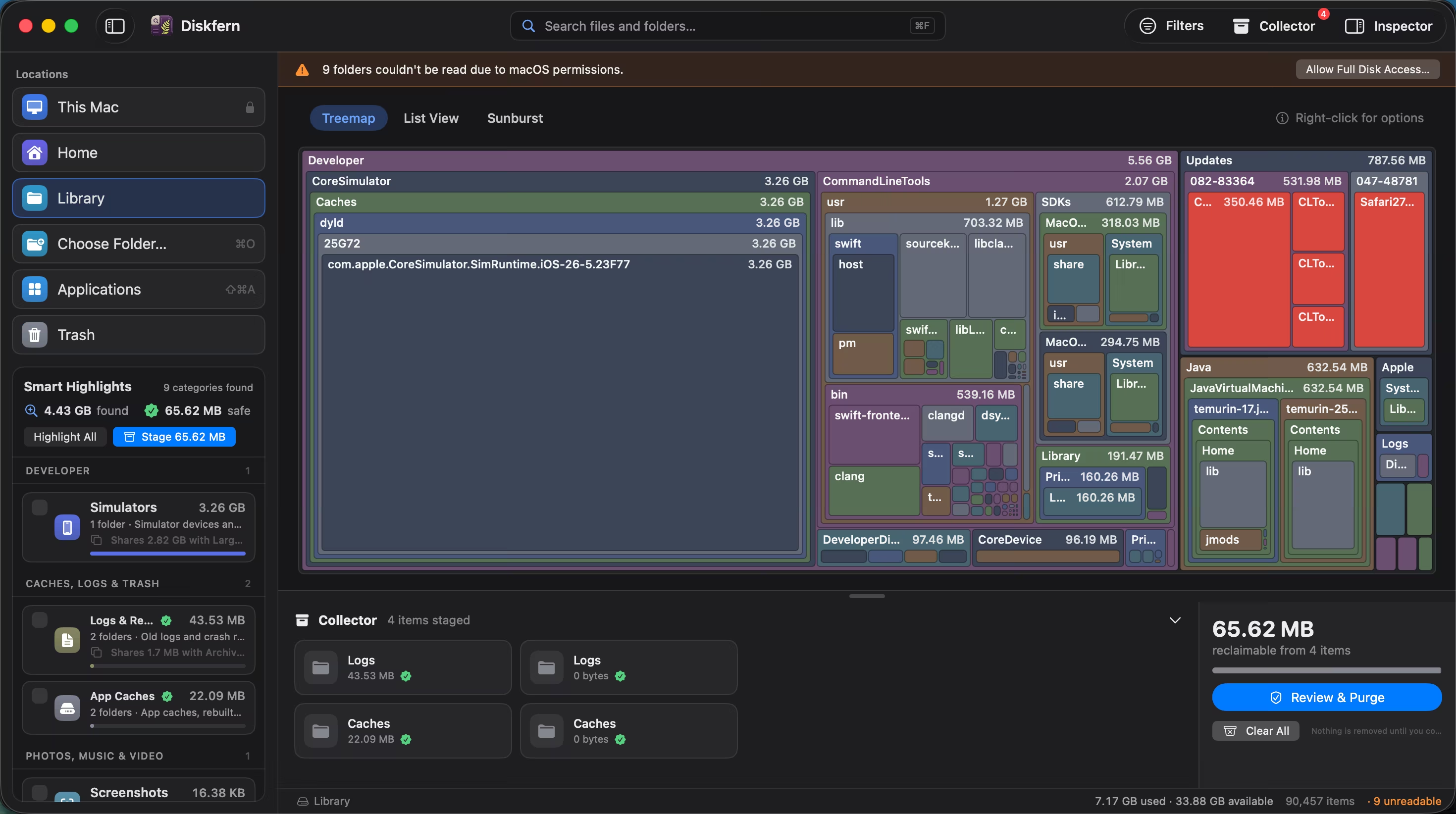
The biggest workflow difference
A category summary or the folders underneath
Storage settings groups files into categories; some categories expose files or a folder browser. Diskfern starts from scanned paths and lets you navigate their hierarchy. Use the built-in tool first, then decide whether unanswered folder questions justify another app.
find and delete filesstorage viewsThe details that affect your choice
System Data is not one disposable folder
Apple describes System Data as system-managed storage. Diskfern can help investigate accessible underlying paths, but it cannot make protected content disposable or promise identical totals under different permissions.
find and delete filesrequirementsCloud storage changes the question
Optional iCloud recommendations can reduce local storage by moving content into a cloud workflow. A local disk map instead helps you inspect what is present on the Mac. Confirm which outcome you want before removing or relocating files.
optimize storagestorage viewsPricing and licensing
macOS Storage settings: Included with macOS
Built-in
No separate application purchase; optional additional iCloud storage has separate charges.
Verified . Confirm region, tax, device count and upgrade terms before purchasing.
free up storageDiskfern pricing
Free analysis: coming soon. Pro and Family cleanup plans: coming soon.
pricingChoose by your needs
Who should choose macOS Storage settings?
- You only need category totals or a quick large-file check.
- You want Apple's media or iCloud optimization controls.
- You prefer to begin without installing software.
Who should choose Diskfern?
- You want to switch between a map, exact sizes and folder depth.
- You want named developer categories and a staging area before cleanup.
- You have macOS 14+ and want a focused storage workflow.
Our recommendation
Choose macOS Storage settings if you need a quick included overview, large-document review or Apple's optimization recommendations. Choose Diskfern if the category totals leave you needing folder-level maps, name search across a scan or named developer categories. There is no universal winner; the documented workflow, your Mac and the job you’re doing should decide.
For a practical starting point, read our related storage guide. You can also compare Diskfern’s features and pricing before checking Diskfern availability.
Frequently asked questions
Where do I find macOS Storage settings?
On macOS 13+, open System Settings → General → Storage. Earlier macOS releases use About This Mac storage management.
Is Storage settings free?
It's included with macOS. Additional iCloud capacity is optional and may cost extra.
Can it find large files?
Yes. Apple documents Large Files and Downloads in Documents, with size sorting and a file browser.
Can I delete all System Data?
No. Apple identifies it as system-managed storage. Investigate specific user files instead of treating the whole category as disposable.
Do I need Diskfern for a quick storage check?
Not necessarily. Start with the built-in overview and add a folder analyzer only if it leaves questions unanswered.
Will both show exactly the same total?
Not necessarily. Permissions, category accounting and system-managed space affect what a folder scan can explain.
Sources and evidence
Vendor pages establish documented behavior, not independent performance or safety results. Diskfern links explain product behavior and availability. Each record below states the claim it supports and when it was reviewed.
Browse sources and checked dates
- Apple: free up storage
Built-in storage categories and recommendations; System Settings location on macOS 13+; optional iCloud storage.
Apple · Checked
- Apple: find and delete files
Category management, large files, downloads, folder browser and app deletion; System Data managed by macOS.
Apple · Checked
- Apple: optimize storage
Storage optimization and optional cloud recommendations, distinct from a recursive whole-disk map.
Apple · Checked
- Diskfern storage views
Treemap, list and sunburst views, name search, Quick Look and read-only scans.
Diskfern · Checked
- Diskfern developer categories
Named developer-storage categories and safety labels.
Diskfern · Checked
- Diskfern cleanup workflow
Collector review; Trash by default with a preference override; an explicit permanent mode; authentication and protected-path checks.
Diskfern · Checked
- Diskfern performance and availability
Measured scan, classification and search timings. Results vary by system; Disk Advisor response time and availability can vary. Duplicate matching is not currently available.
Diskfern · Checked
- Diskfern requirements
Core analysis requires macOS 14+ on Intel or Apple silicon. Disk Advisor requires macOS 26+ and an eligible Mac with Apple Intelligence available.
Diskfern · Checked
- Diskfern local analysis
Scanning and Disk Advisor run on your Mac.
Diskfern · Checked
- Diskfern pricing
Free analysis and paid cleanup tiers. Diskfern is coming soon.
Diskfern · Checked
About this comparison
Diskfern is not affiliated with, sponsored by, or endorsed by the products or companies mentioned on this page. Product names and trademarks belong to their respective owners.
Apple, Mac and macOS are trademarks of Apple Inc. Diskfern is an independent product and is not affiliated with or endorsed by Apple Inc.