 Diskfern
Inspect & Quick Look
Know what something is before you touch it
Open a native preview, see its real path and permissions, and check why Diskfern marked it Safe, Review first, or Protected.
Short answer
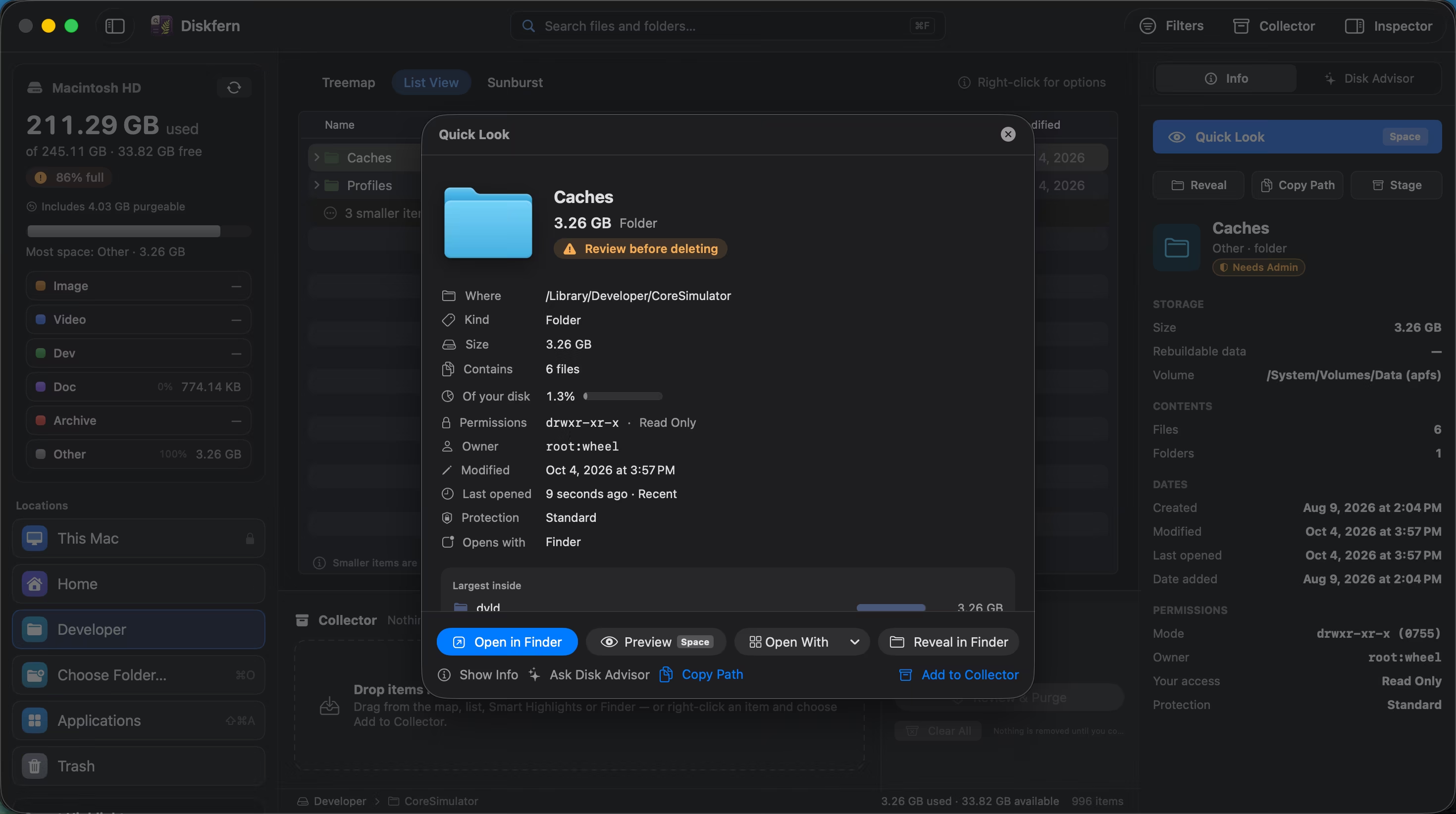
Diskfern keeps inspection close to every map, list and search result. Quick Look shows the item and its largest contents, while the Inspector stays open beside your scan for ongoing comparison.
01
Preview without opening another app
Press Space for a focused sheet with the item's type, size, location, dates, owner and largest contents.
- Native preview
- Largest contents
- Open and reveal actions
02
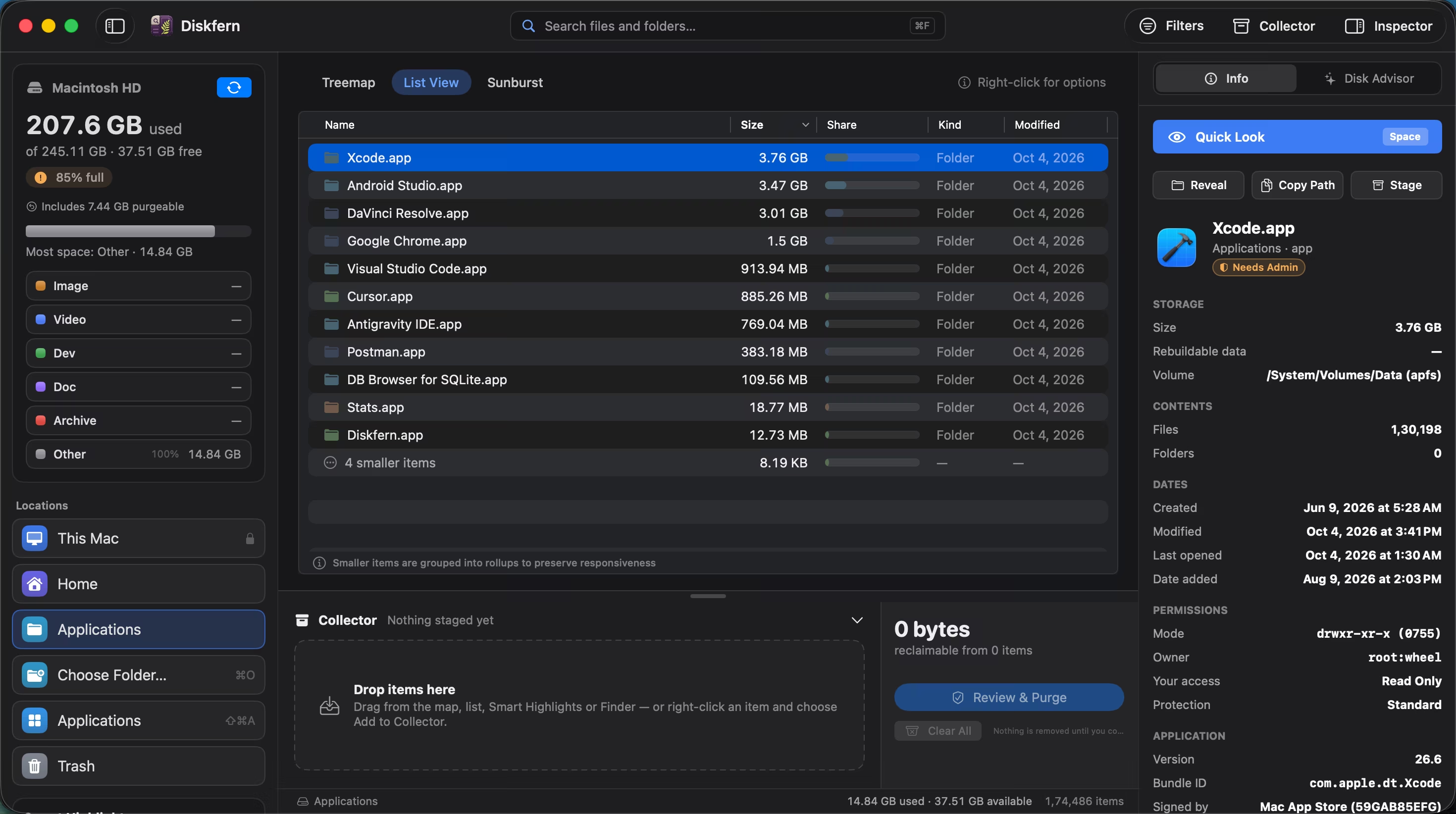
Keep details beside the scan
The Inspector follows your selection so you can compare items without opening and closing windows.
- Size and file count
- Created and modified dates
- Owner and permissions
03
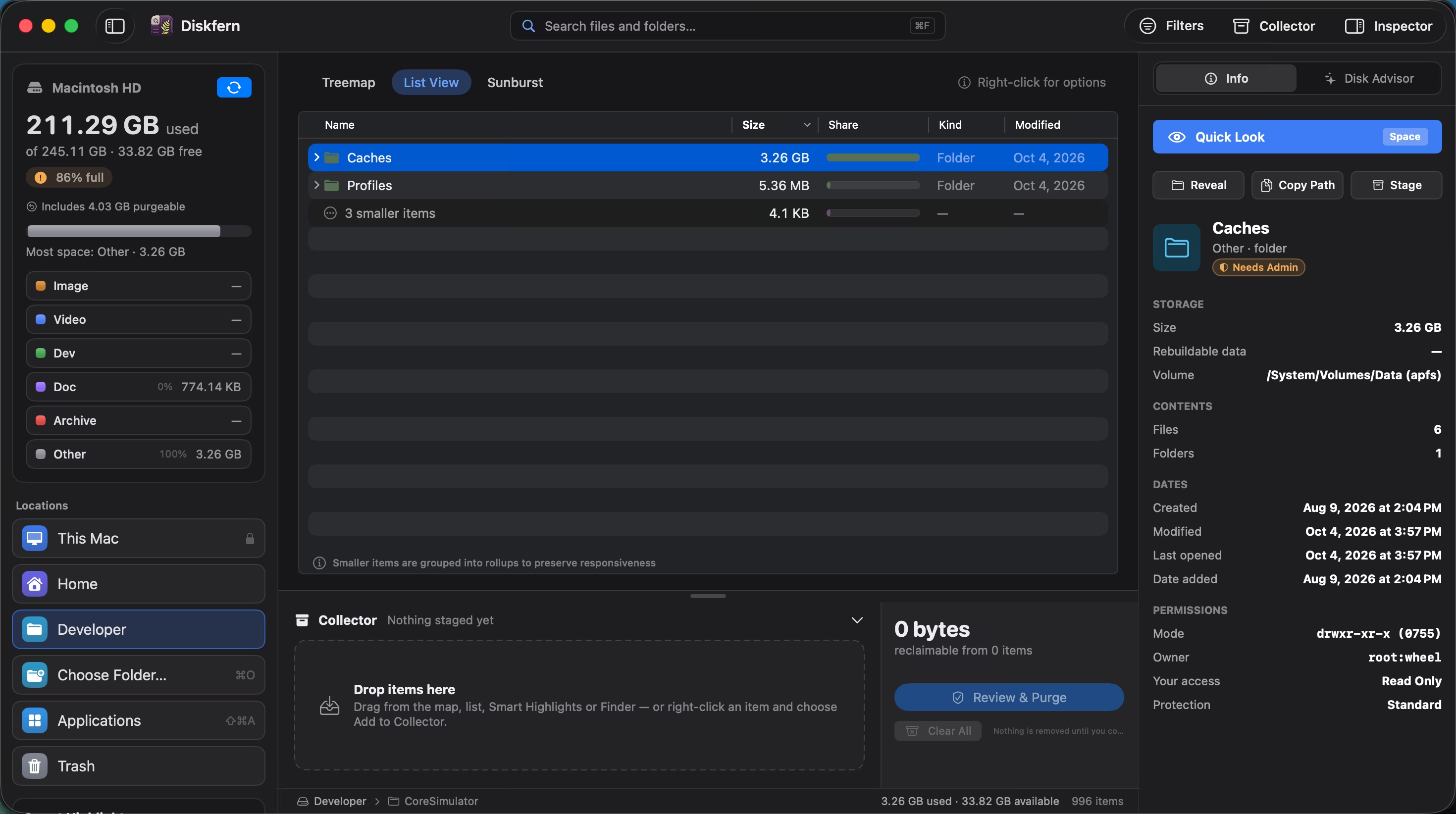
See why it received its label
Safety is explained in context, with protected locations kept unavailable for cleanup.
- Safety reason
- App ownership
- Protection status
Questions about Inspect & Quick Look
How do I open Quick Look?
Select an item and press Space or ⌘Y.
Can I reveal an item in Finder?
Yes, from Quick Look, the Inspector, search or the context menu.
Does Show Info modify the file?
No. Inspection is read-only.
Can I copy the full path?
Yes, from the item's actions.

Get your space back. Start with a free scan.
Explore the files and folders Diskfern can read. Your files stay on your Mac, and nothing is removed until you say so.
macOS 14 Sonoma or later · Apple silicon and Intel