Skip to content
Diskfern · Mac storage, made clear

How to check storage on Mac - and free up space fast.

See what’s using your Mac storage, find extra storage space, and clear what you don’t need with one visual map.

Free to scan foreverNo accountNo credit card

macOS 14+Apple silicon & IntelDownload coming soon

Find the big files. Keep what matters.Analysis stays on your Mac

Measured, not guessed

Real folders. Real results.

A whole startup disk in about 16 seconds, search across millions of files in milliseconds, and a saved map that’s back almost instantly.

~16 s
Whole startup disk
About 2.9 million files scanned
2.35 ms
Selective Finder search
videos > 1gb · 2 million records
184 ms
Search index built
For 2 million records
0.74 ms
Treemap layout
3,000 tiles · layout calculation only
18.6 ms
Saved scan restored
500,000 items
2,888
Measurements taken
Across 330 tests

Measured on a MacBook Air with an Apple M4 chip and 16 GB memory, running macOS 26.6. Results vary with your Mac, its storage and how many files you have.

See Diskfern in action

See why your Mac is full - in 49 seconds.

See how Diskfern helps you find what’s taking space, understand what you’re looking at, and clean with confidence.

0:49
  • ~2.9M files scanned
  • Natural-language file search
  • Analysis stays on your Mac

Scan and search figures measured with an optimized build on a MacBook Air (M4, 16 GB). See the method →

Real-world workflows

Built for the storage that actually clutters your Mac.

Find the folders behind your storage use, understand their purpose, and review your options.

Developer ToolingReview build storage

Xcode & Developer Storage

Locate DerivedData, simulator runtimes, download caches and node_modules folders, then check which projects still need them.

Creative WorkflowsFind large media

Video & Media Scratch Disks

Uncover multi-gigabyte ProRes render files, Final Cut event caches, and forgotten screen captures taking up valuable SSD space.

macOS System DataUnderstand app data

Caches & Staged Archives

Inspect readable caches and app data with file details and review prompts. A scan can differ from Apple's storage categories.

What you get back

More room. Less guesswork.

From a full disk to a clear plan for what to keep, review and clear.

See the biggest files

Find the space you can actually reclaim

Spot large downloads, installers and forgotten projects in a map sized to their real disk usage.
Find the space you can actually reclaim
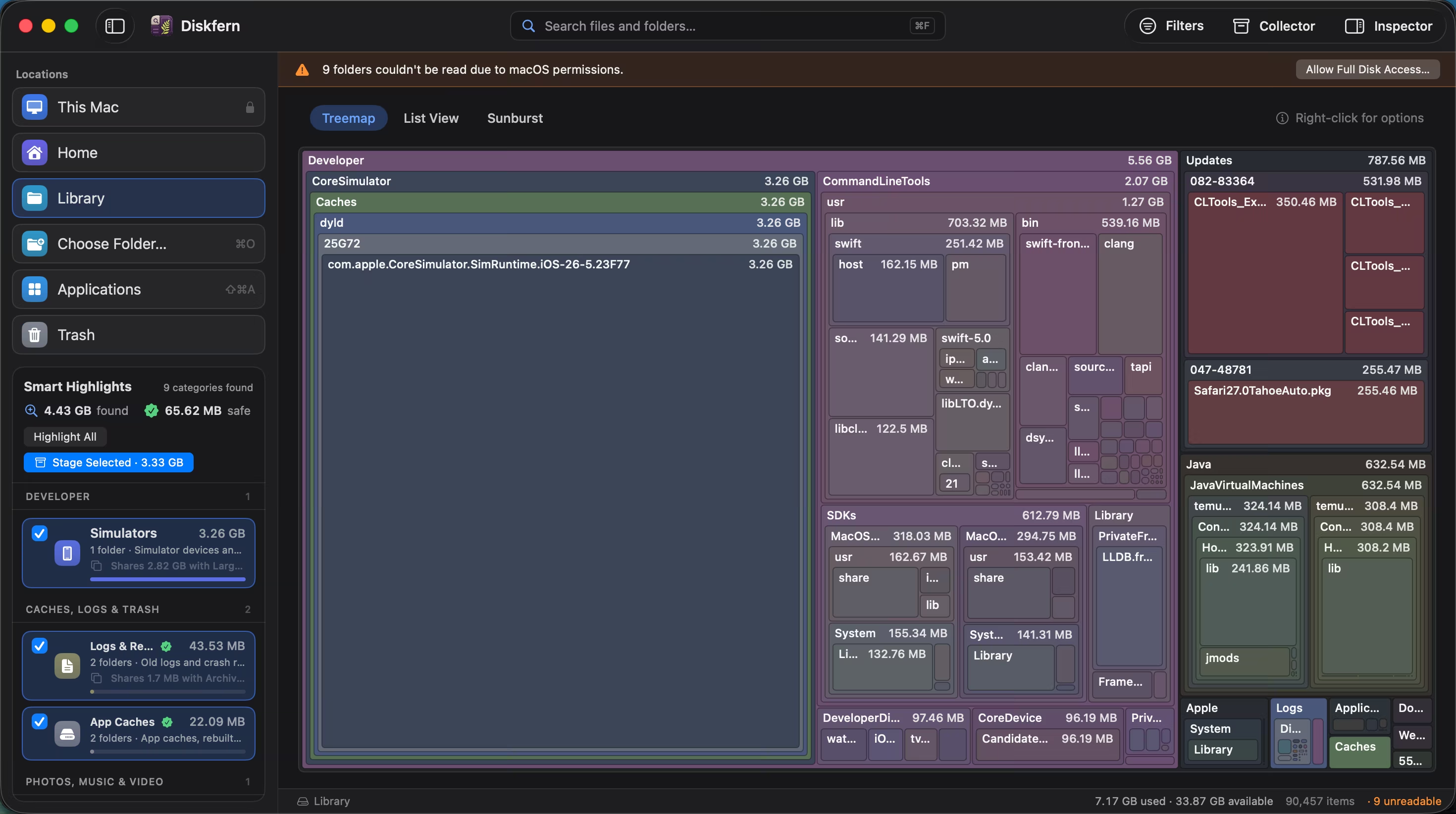
Know what deserves a look

Spend less time sorting through folders

Smart Highlights group 44 kinds of clutter. Safety labels help you separate rebuildable caches from files worth reviewing.
Spend less time sorting through folders
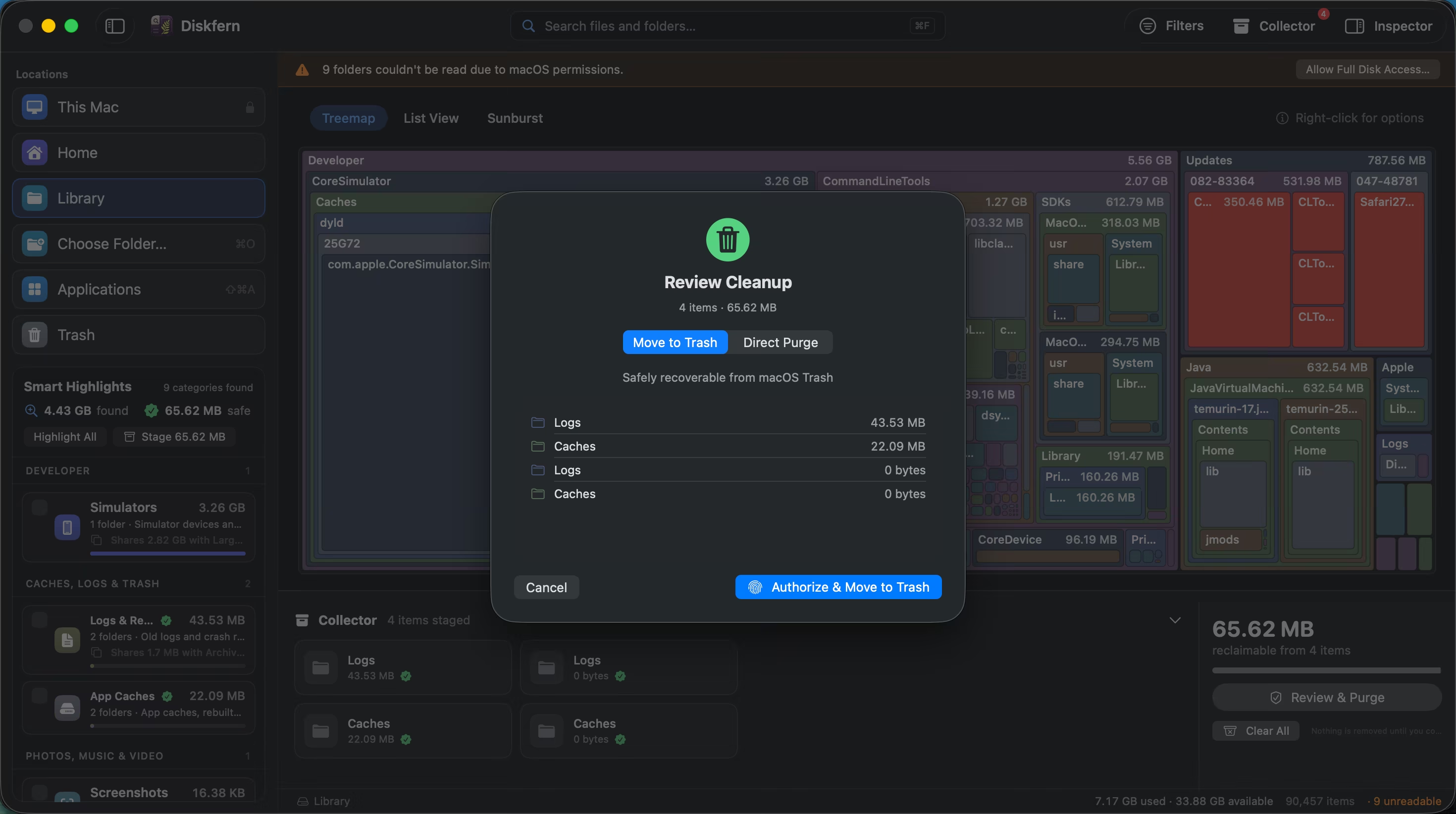
Review before removing

Keep control of every cleanup

Pro lets you collect candidates, review the total and move approved items to Trash. Restore them before you empty it.
Keep control of every cleanup
Start with a free storage scan

Explore your own disk first. Upgrade only when you want cleanup tools.

The map shows where. Highlights say what.

Explore your storage map, with Smart Highlights to help you review caches, developer files and other cleanup candidates.
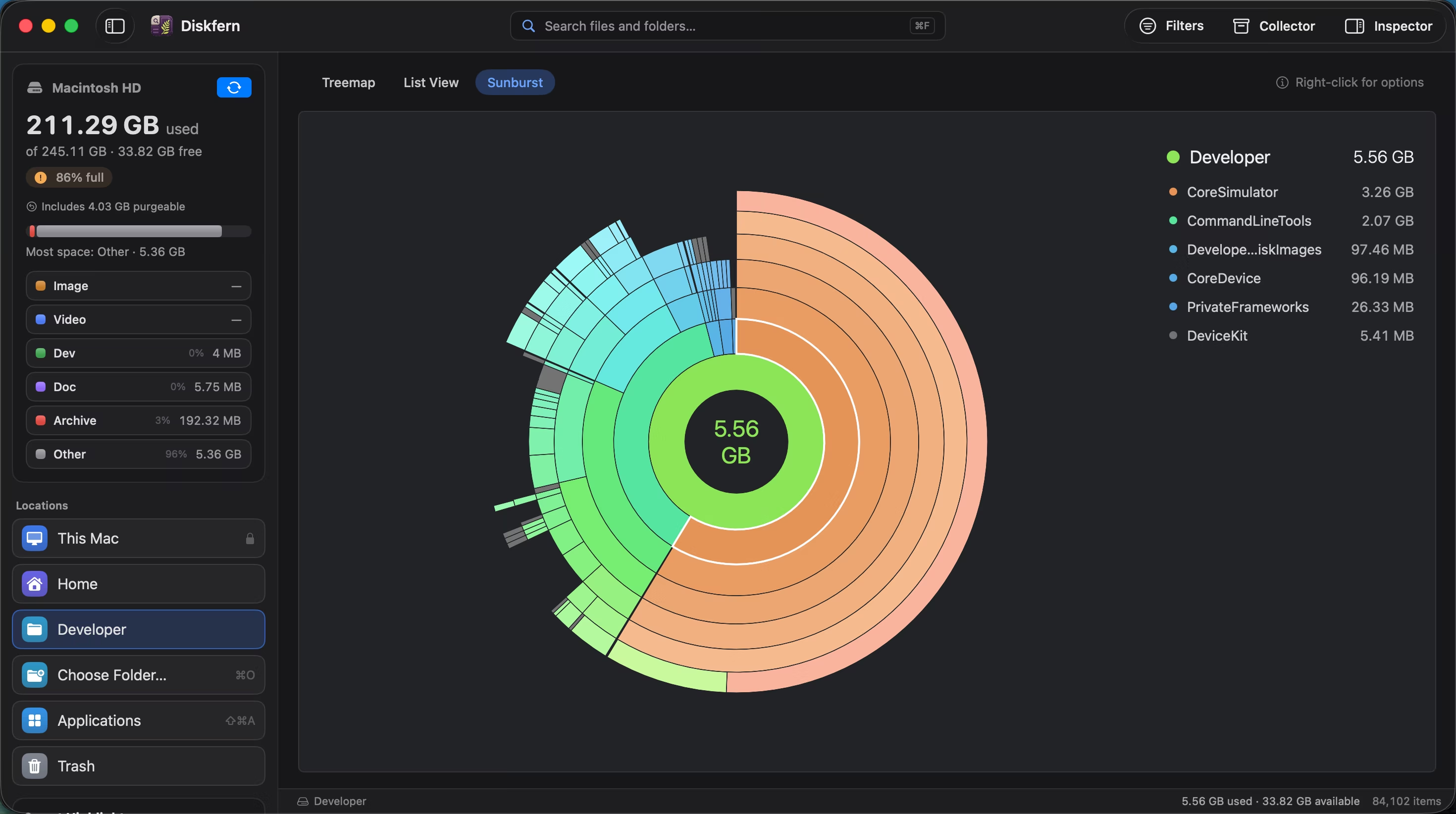
Diskfern sunburst with a developer storage folder selected
Open any folder.Double-click a block to step inside. Here, a developer's home folder: Android emulators, node_modules and Gradle caches stand out at once.

Smart Highlights

Example scan
  • Android SDK & Emulators21.4 GBReview
  • Node.js9.8 GBSafe
  • Xcode7.1 GBSafe
  • Browser Caches4.6 GBSafe
  • Installers & Disk Images3.2 GBReview
  • Logs & Reports1.3 GBSafe

Labelled honestly. Safe items are rebuilt or downloaded again; Review items might be yours.

Recognises 44 kinds of clutter, including

  • Node.js
  • Xcode
  • Simulators
  • Build Output
  • Gradle
  • Android SDK & Emulators
  • Pods & Packages
  • Python Caches
  • Rust & Go
  • Docker
  • AI Models
  • Editors & IDEs
  • Browser Caches
  • App Caches
  • Logs & Reports
  • Trash
  • Videos
  • Large Photos & RAW
  • Screenshots
  • Meeting Recordings
  • Downloads
  • Installers & Disk Images
  • Archives
  • iPhone & iPad Backups
  • Virtual Machines
  • Old Large Files
  • Mail
  • Messages Attachments

How it works.

Four steps, and nothing is removed until the last one.

01

Start a scan.

Open Diskfern and press Scan Now for the whole Mac, or Choose Folder to look at just one.
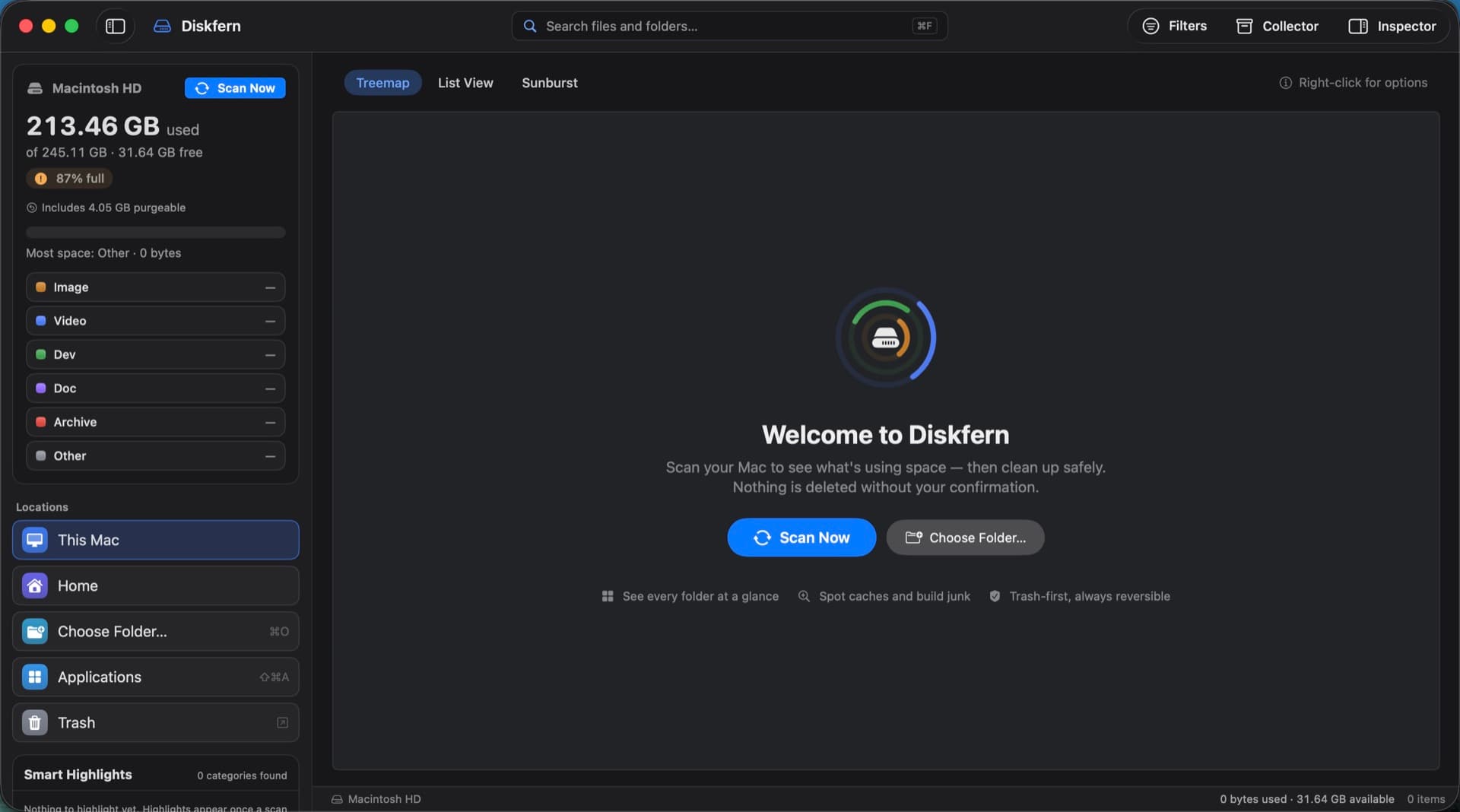
Diskfern welcome screen with Scan Now and Choose Folder buttons

02

Watch it count.

A live counter shows items found, speed and the folder being read. Cancel any time.
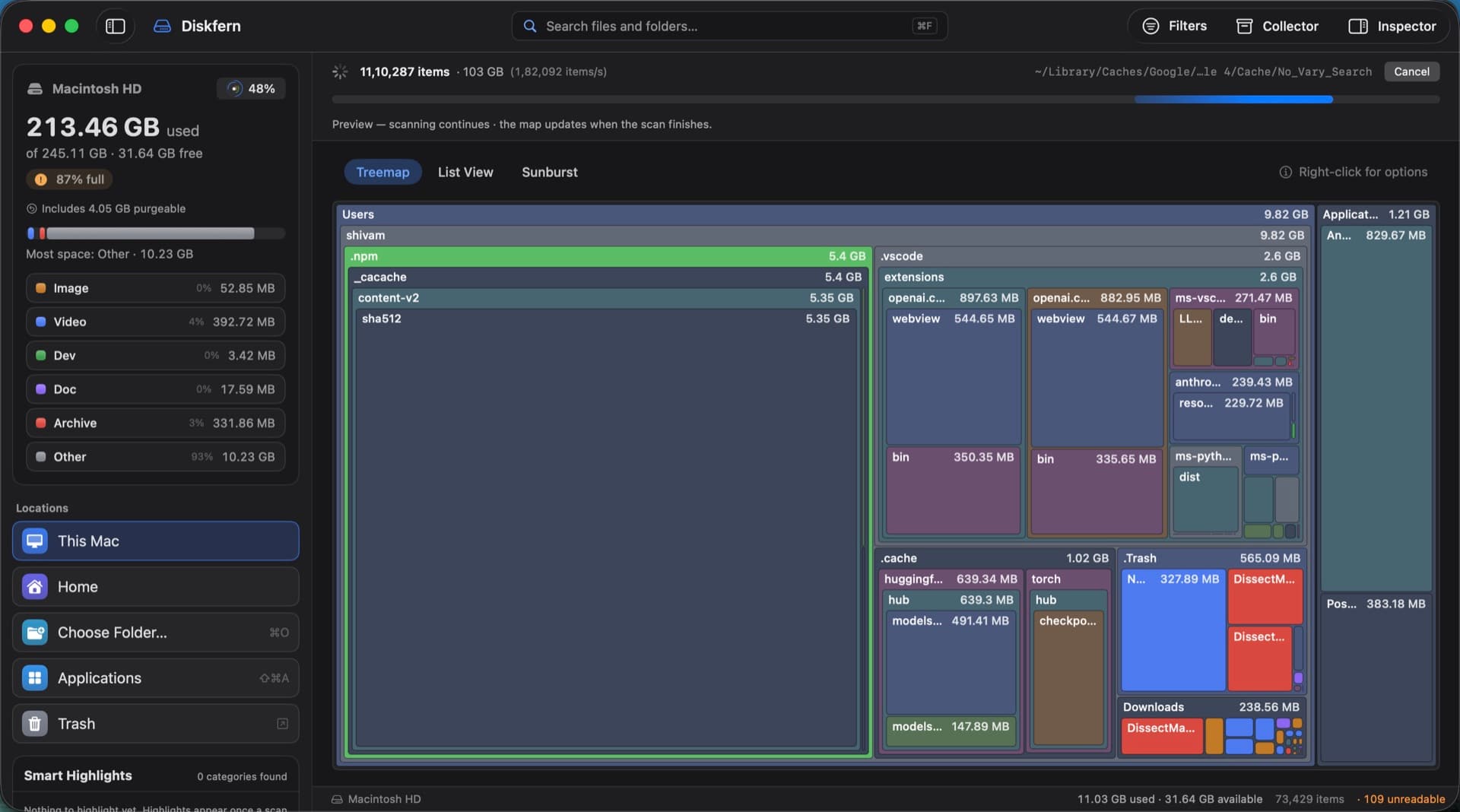
Diskfern scanning: item count, items per second and the current path

03

Explore before it ends.

The map fills in while the scan runs, so you can start looking straight away. Your last scan reopens in seconds next time.
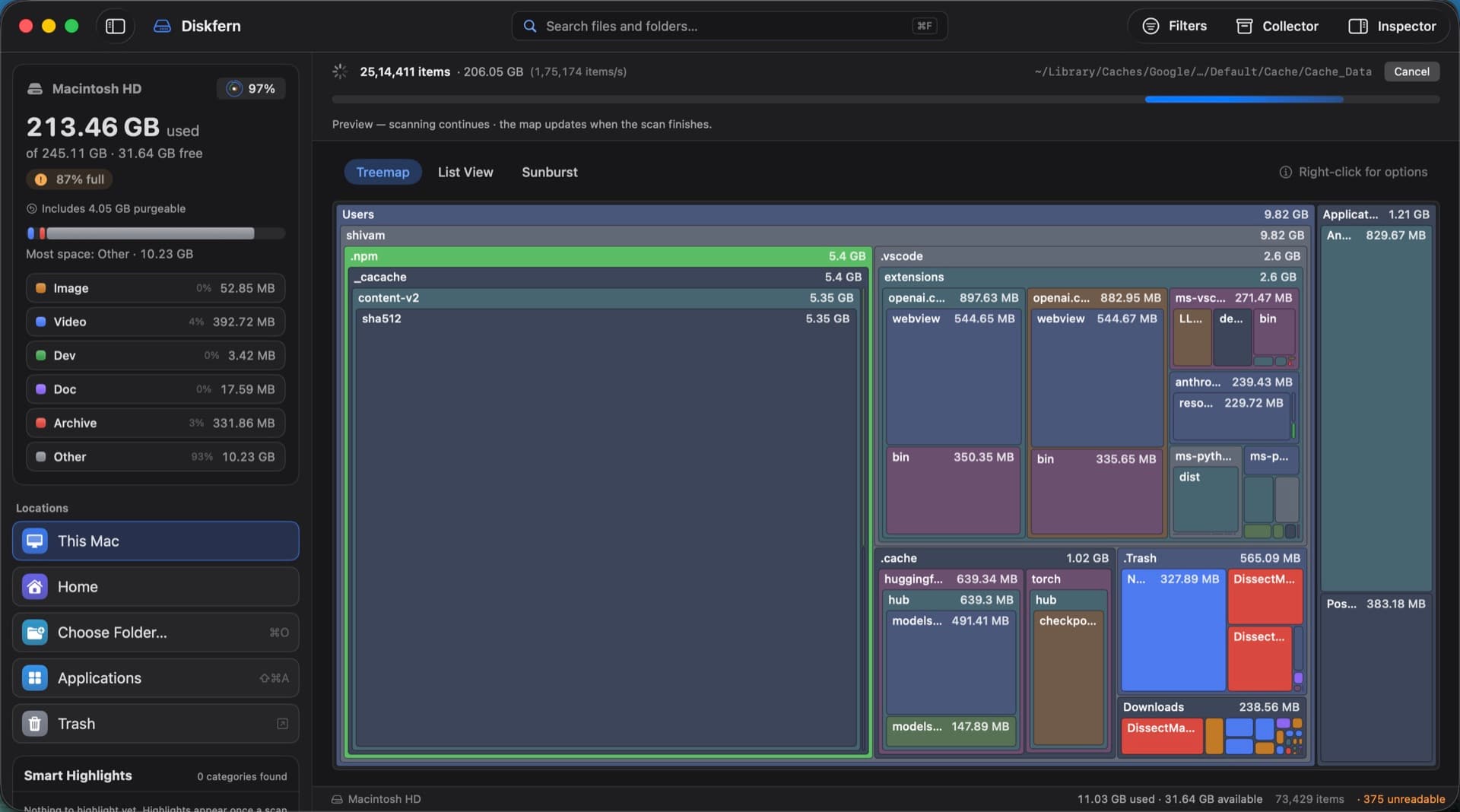
The Diskfern map filling in while the scan is still running

04

Clean up, safely.

Collect what you want gone in the Collector, see the space you'll get back, then move it all to the Trash in one step. Put Back still works.
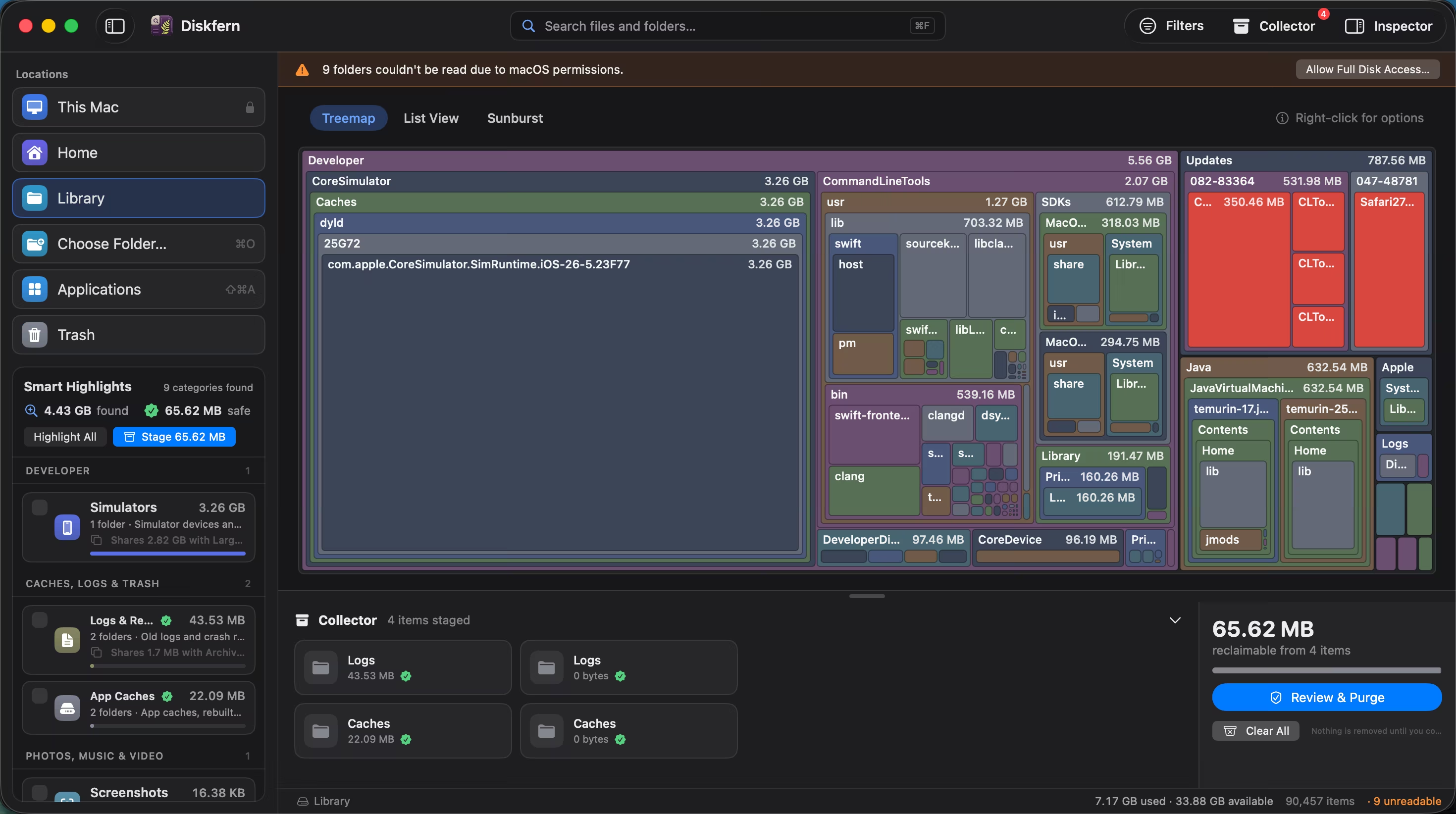
The Collector holding staged items and the total space to reclaim

Three views. One map.

Switch any time. Your place and selection come with you.

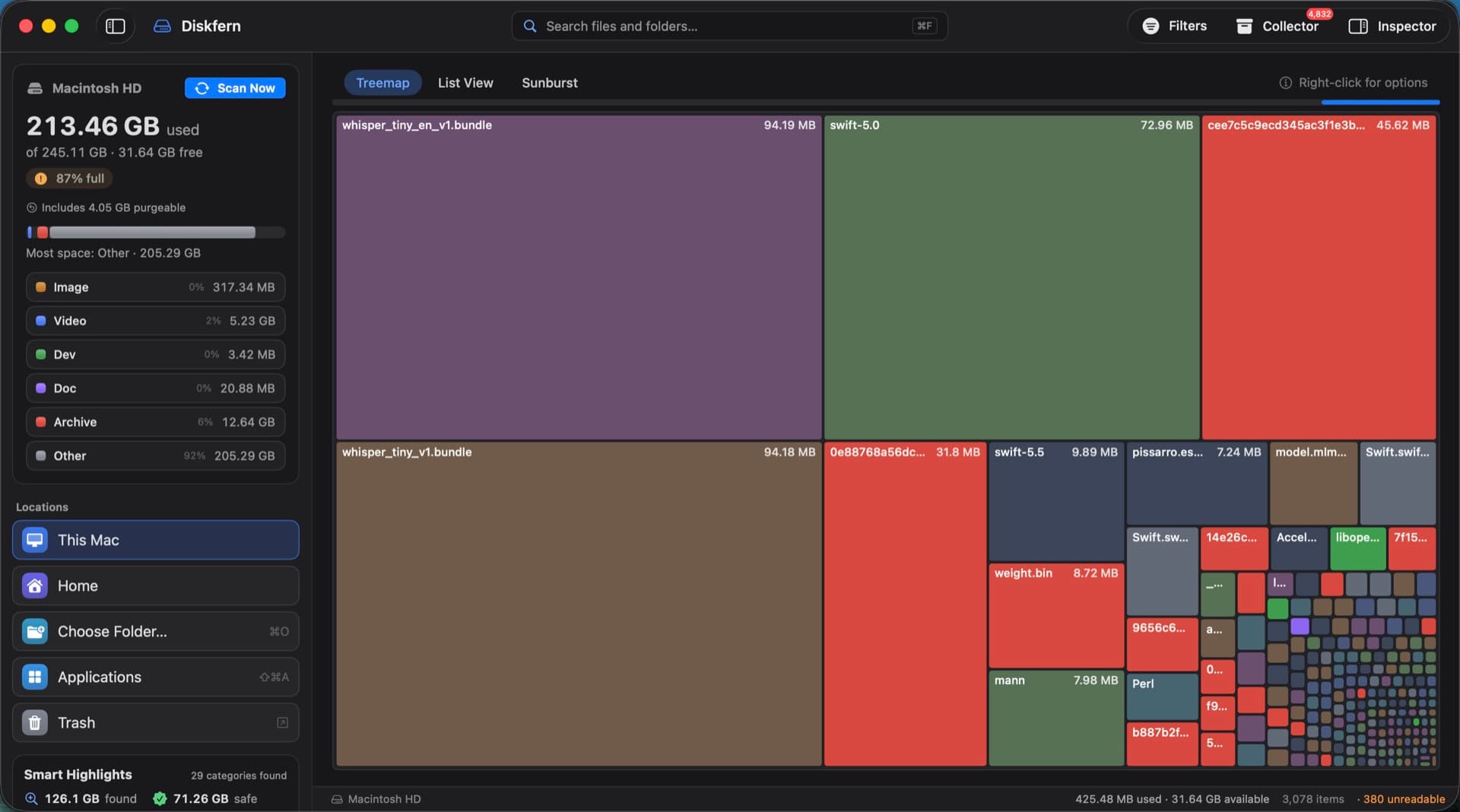
Your Home folder as a treemap: Library, projects and caches, each drawn to scale.
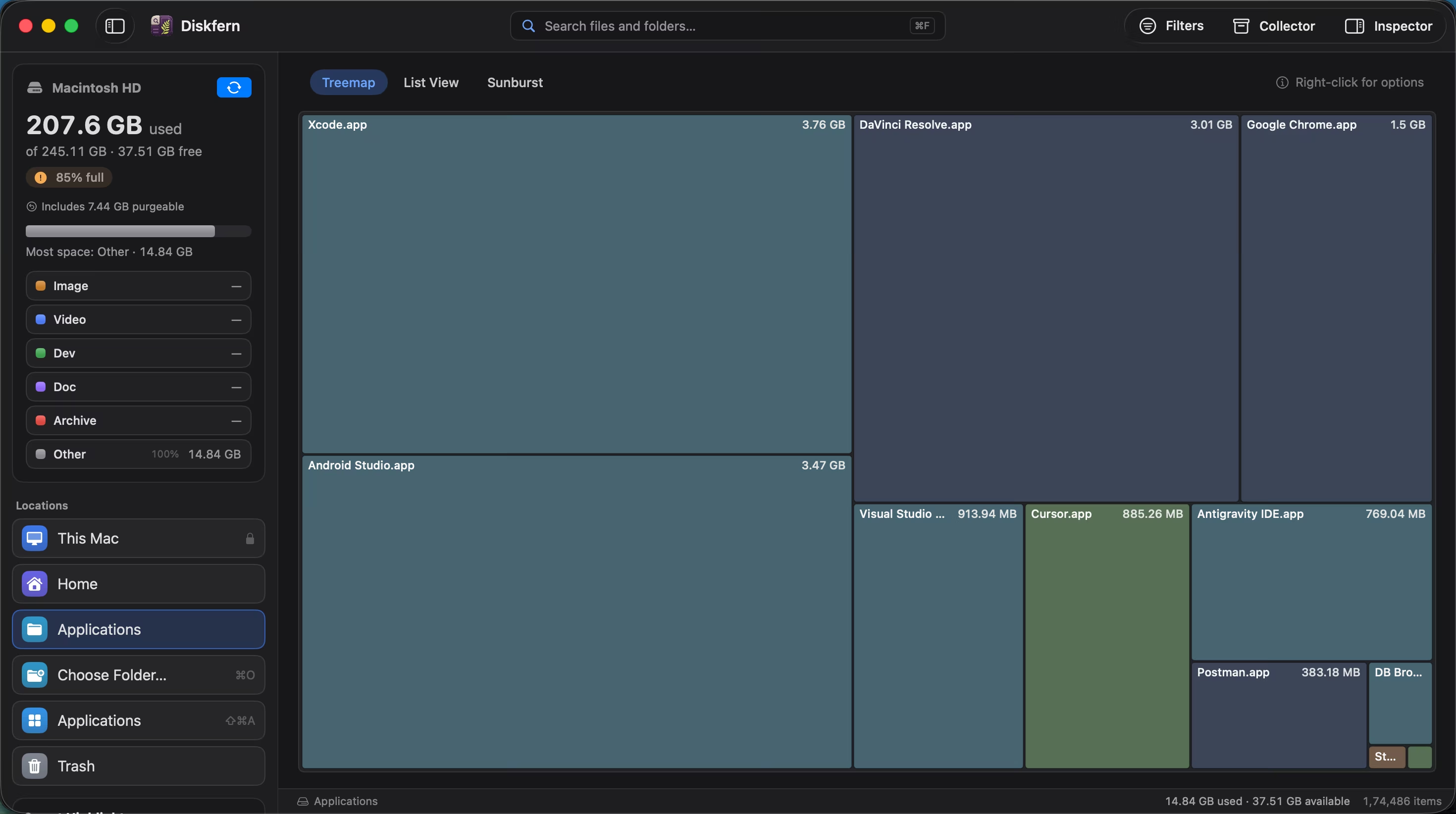
Diskfern treemap view

Smart Highlights

Tick a category. Review what's yours.

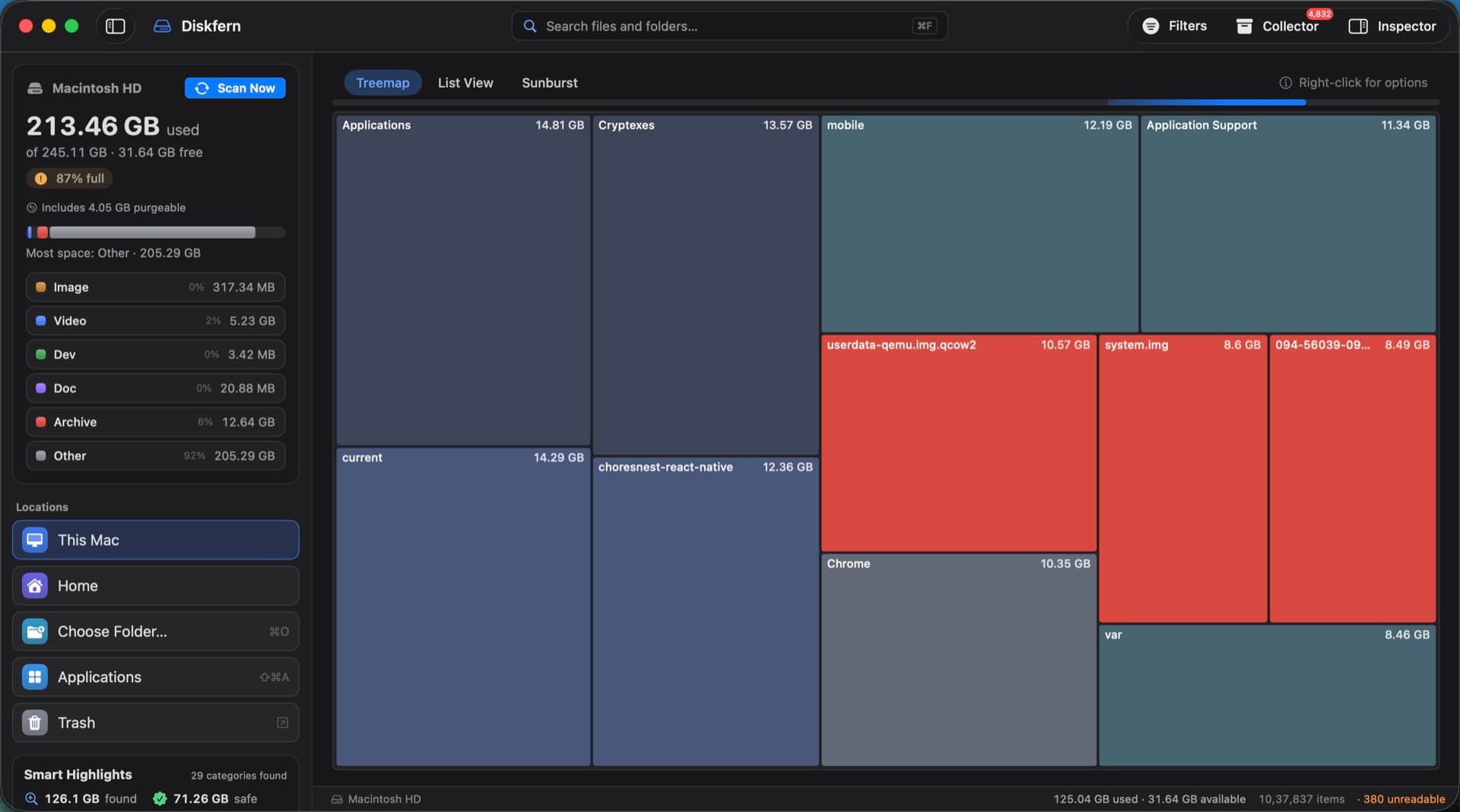
Highlights group the clutter by what it is. Safe categories go straight to the Collector; anything that might be personal is shown to you first.

Smart Highlights with Simulators, Logs and App Caches selected
Pick categories, see the total.The sidebar lists every category found, with its size. Tick the ones you want and Stage Selected adds them in one go.
Review Before Adding sheet listing videos with their paths and sizes
Personal files are reviewed first.Videos, downloads and other personal files open Review Before Adding: every file with its path and size, so you can untick anything you want to keep.

Filters

Ask the whole disk one question.

Filters work across every scanned item, not just the folder on screen, and the map updates as you change them.
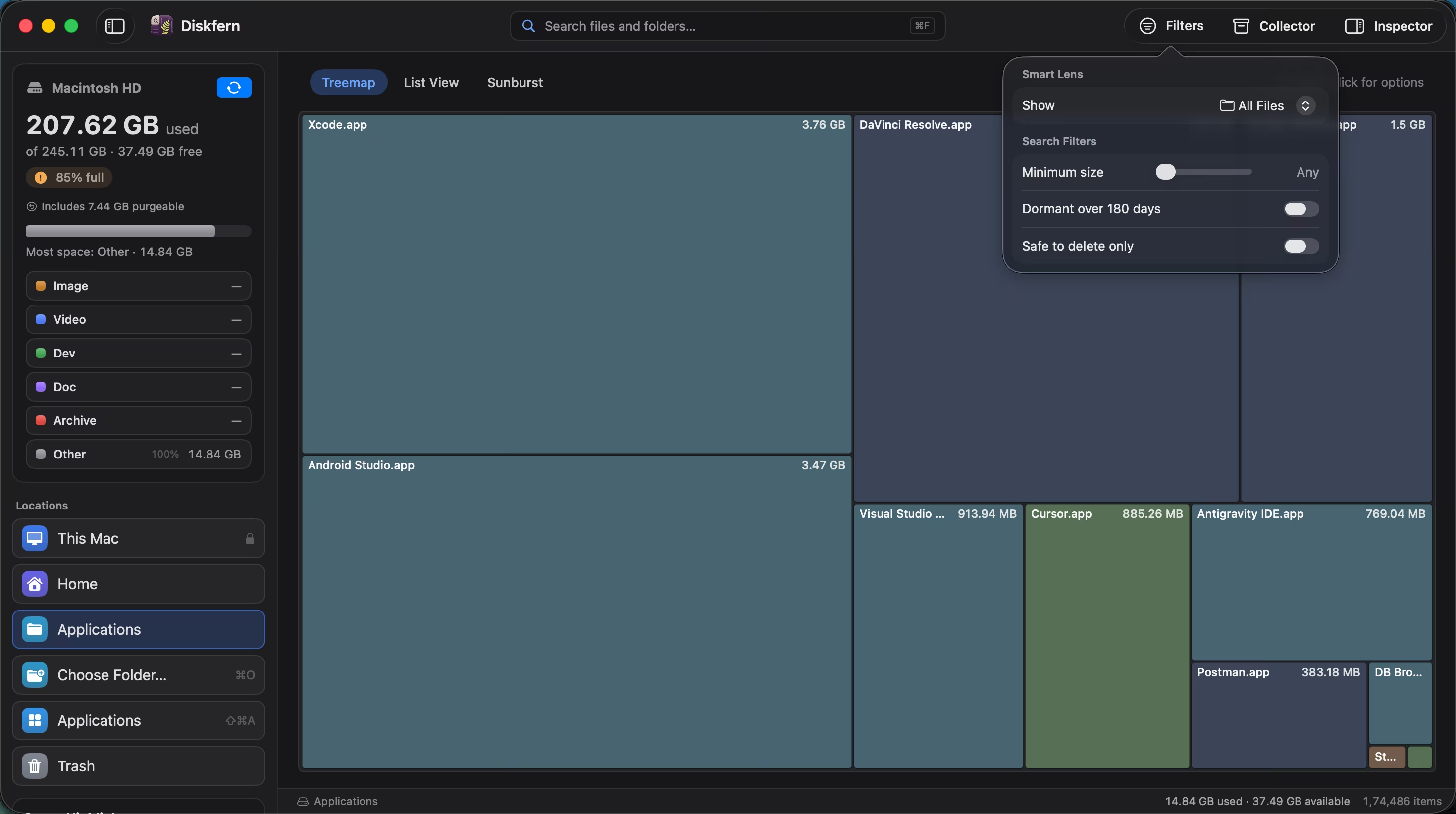
Filters popover with minimum size, dormant over 180 days and safe to delete only
Filters, one click away.Set a minimum size, show only what you haven't touched in 180 days, or only what's safe to delete.
Map filtered to items of 8 GB and more
Only the big ones.With a minimum of 8 GB, the map shows just the giants: emulator images, Chrome data, big projects.
Map filtered to items unused for over 180 days
Forgotten for six months.Dormant over 180 days surfaces what you stopped using, like old speech models and toolchains.
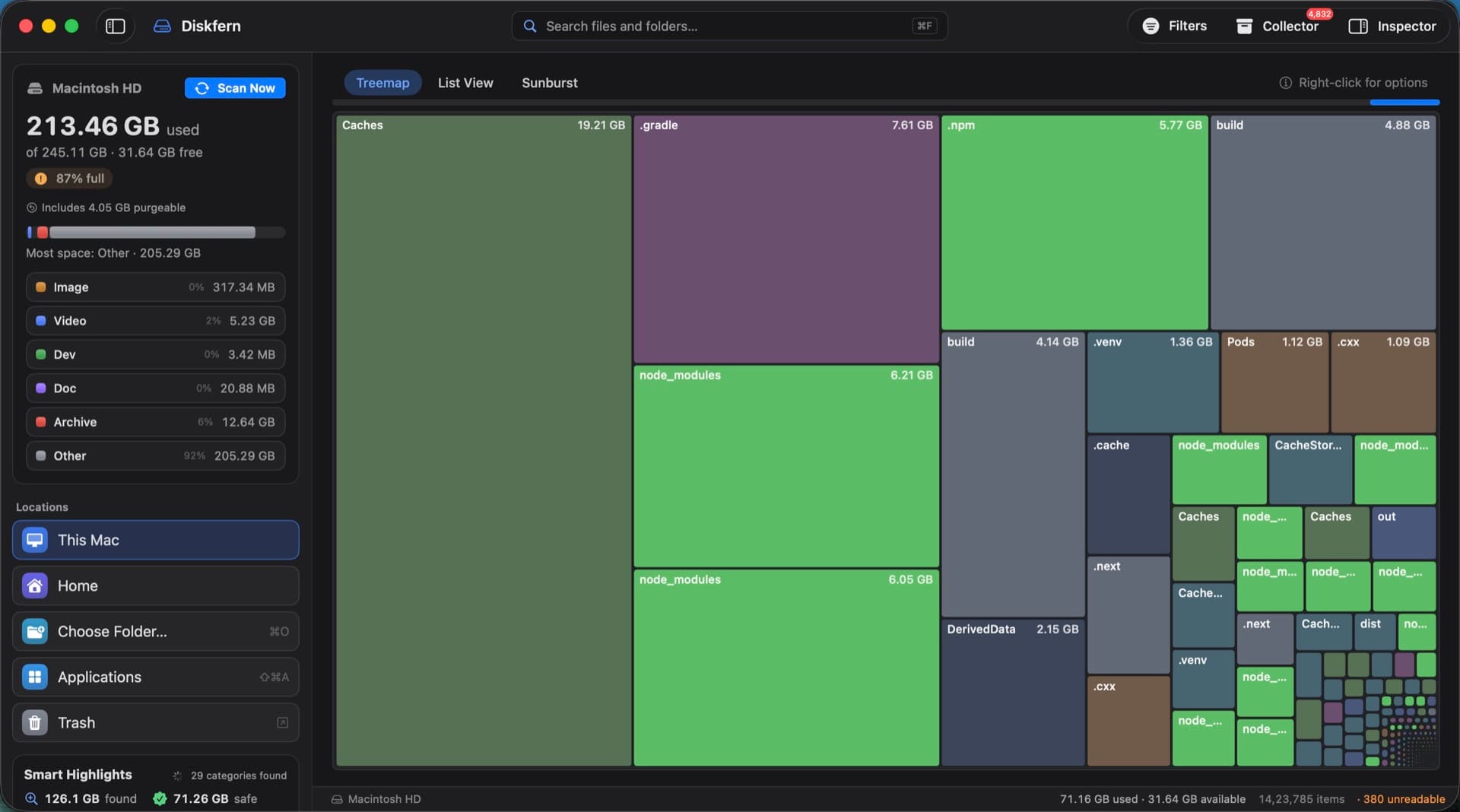
Map filtered to items that are safe to delete: caches, .gradle, .npm and node_modules
Only what comes back.Safe to delete only leaves caches, .gradle, .npm, node_modules and build folders, all rebuilt on demand.

Inspect

Know exactly what it is before you decide.

Everything about an item is a right-click or a keystroke away, the way Mac apps should work.
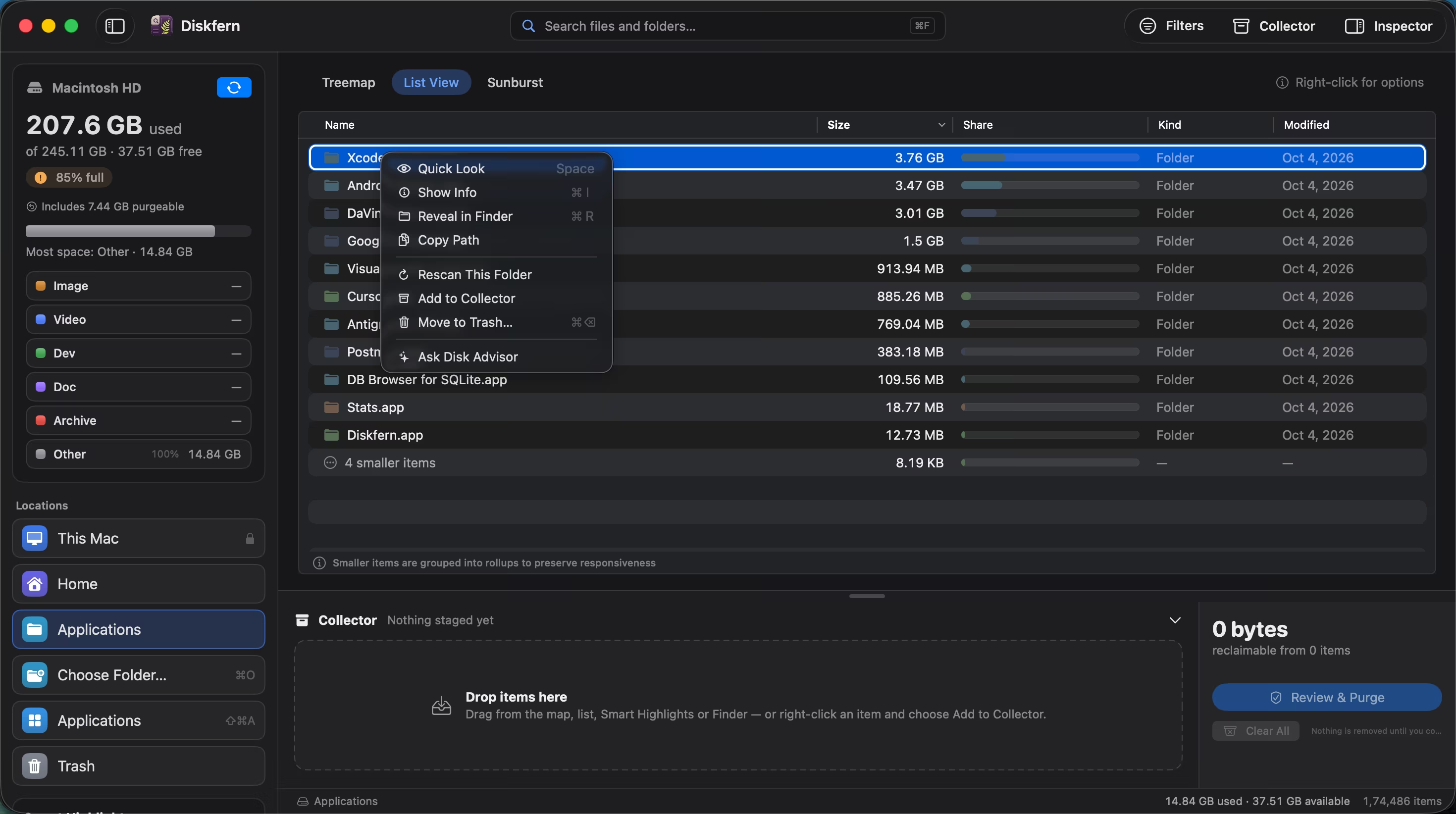
Right-click menu with Open, Quick Look, Show Info, Reveal in Finder, Copy Path and Add to Collector
Right-click anything.Open, Quick Look, Show Info, Reveal in Finder, Copy Path, Rescan, Add to Collector or Ask Disk Advisor.
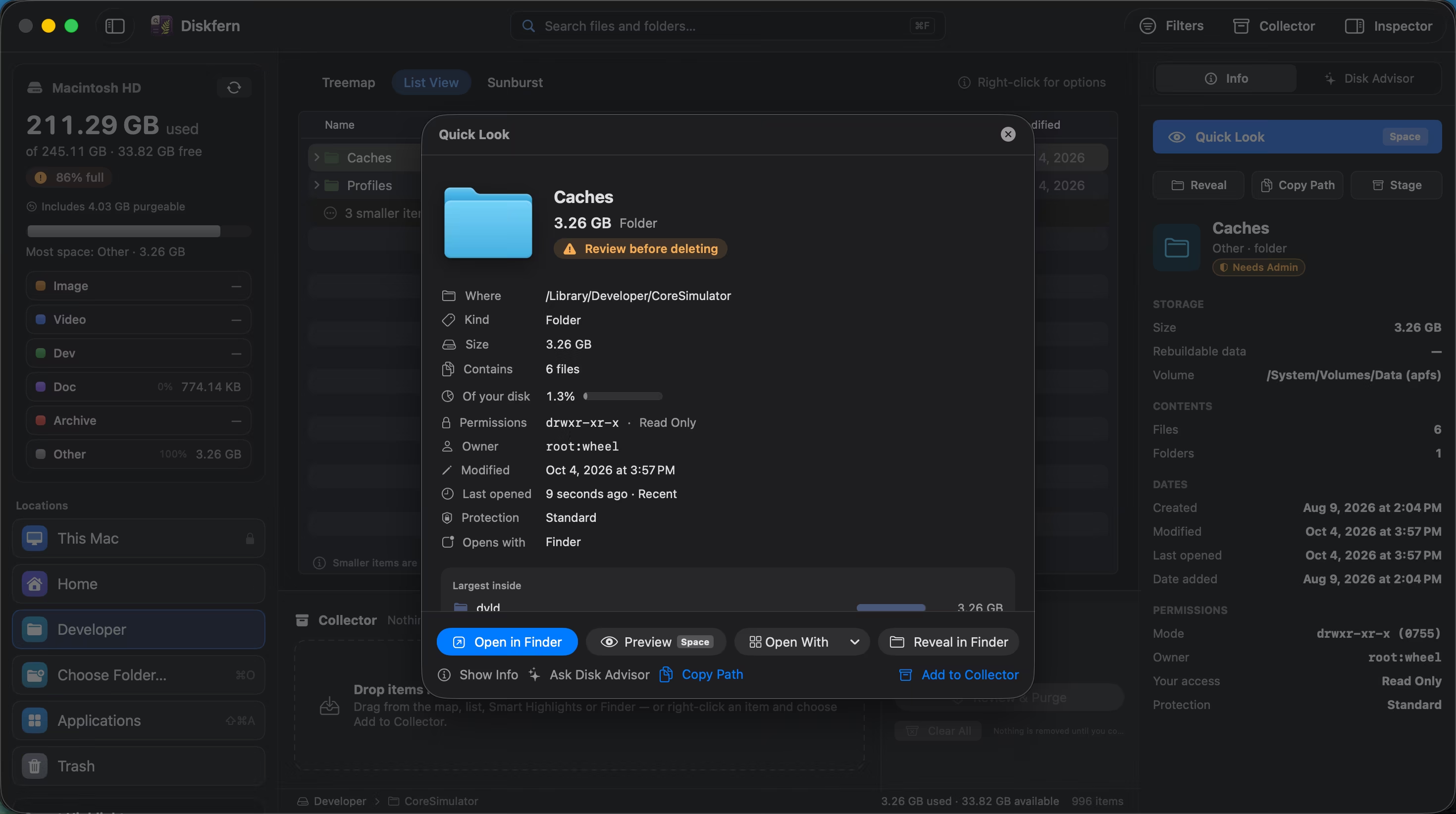
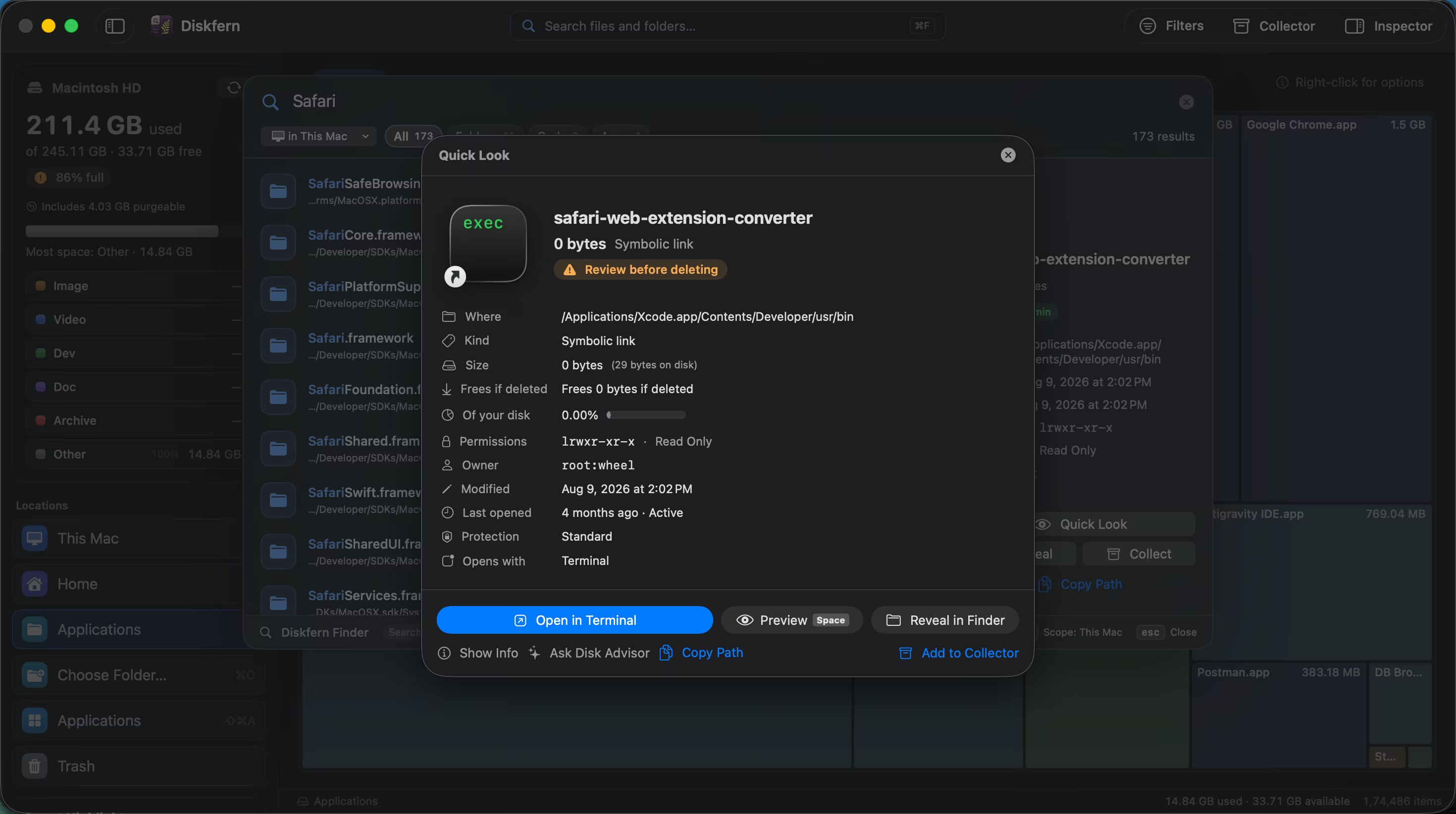
Quick Look sheet with where, kind, size, file count, share of disk, permissions, owner and dates
Quick Look, with facts.Press Space: location, size, file count, share of your disk, owner, permissions, dates and protection.
Inspector panel showing storage, contents, dates and permissions for a folder
The Inspector.Keep the details open beside the map: storage, contents, dates and permissions for whatever you select.

Search

Find any file by name, in an instant.

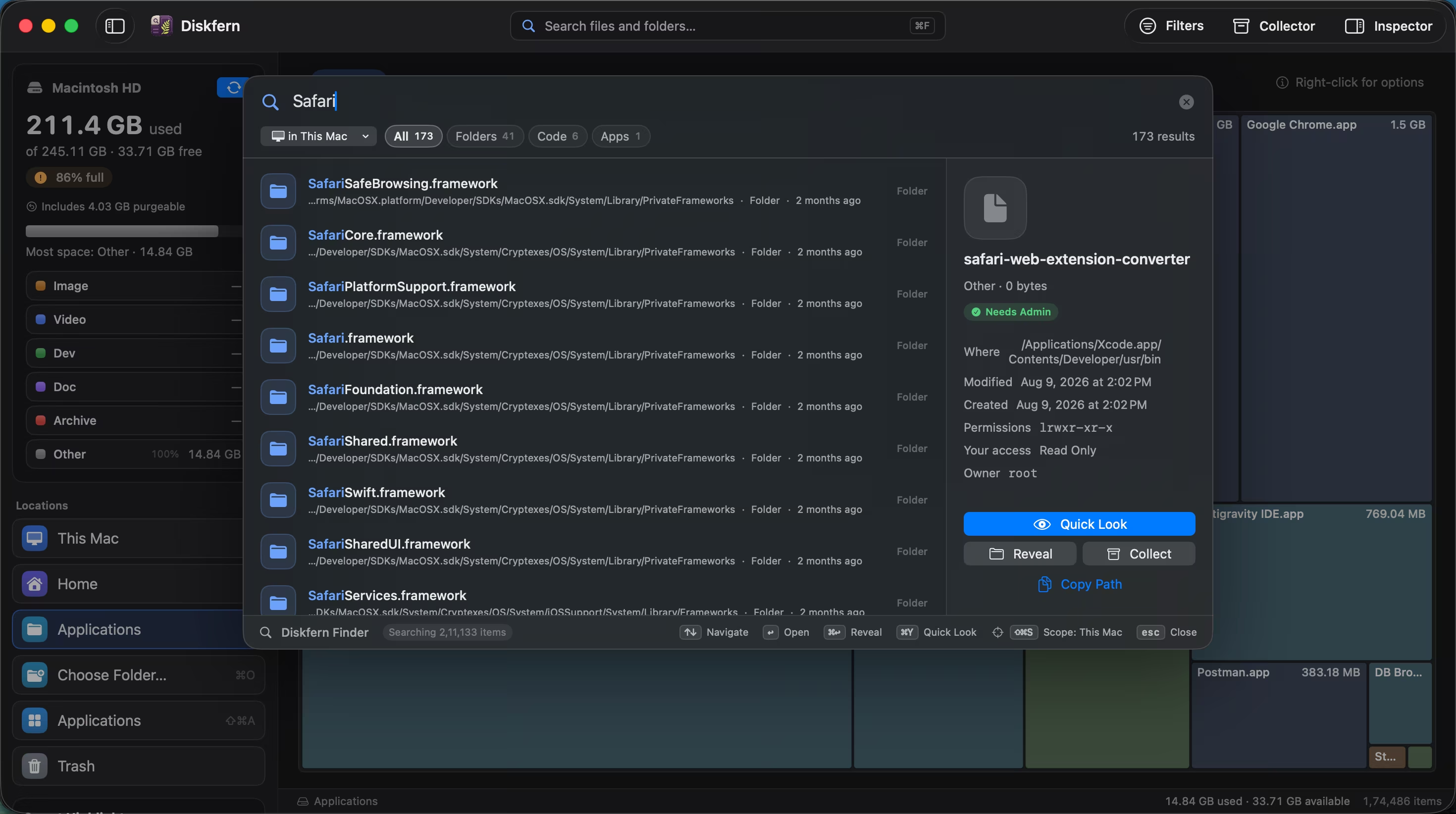
Press ⌘F and type. Results stream in with sizes, filtered by kind and scoped to the whole Mac or one folder.
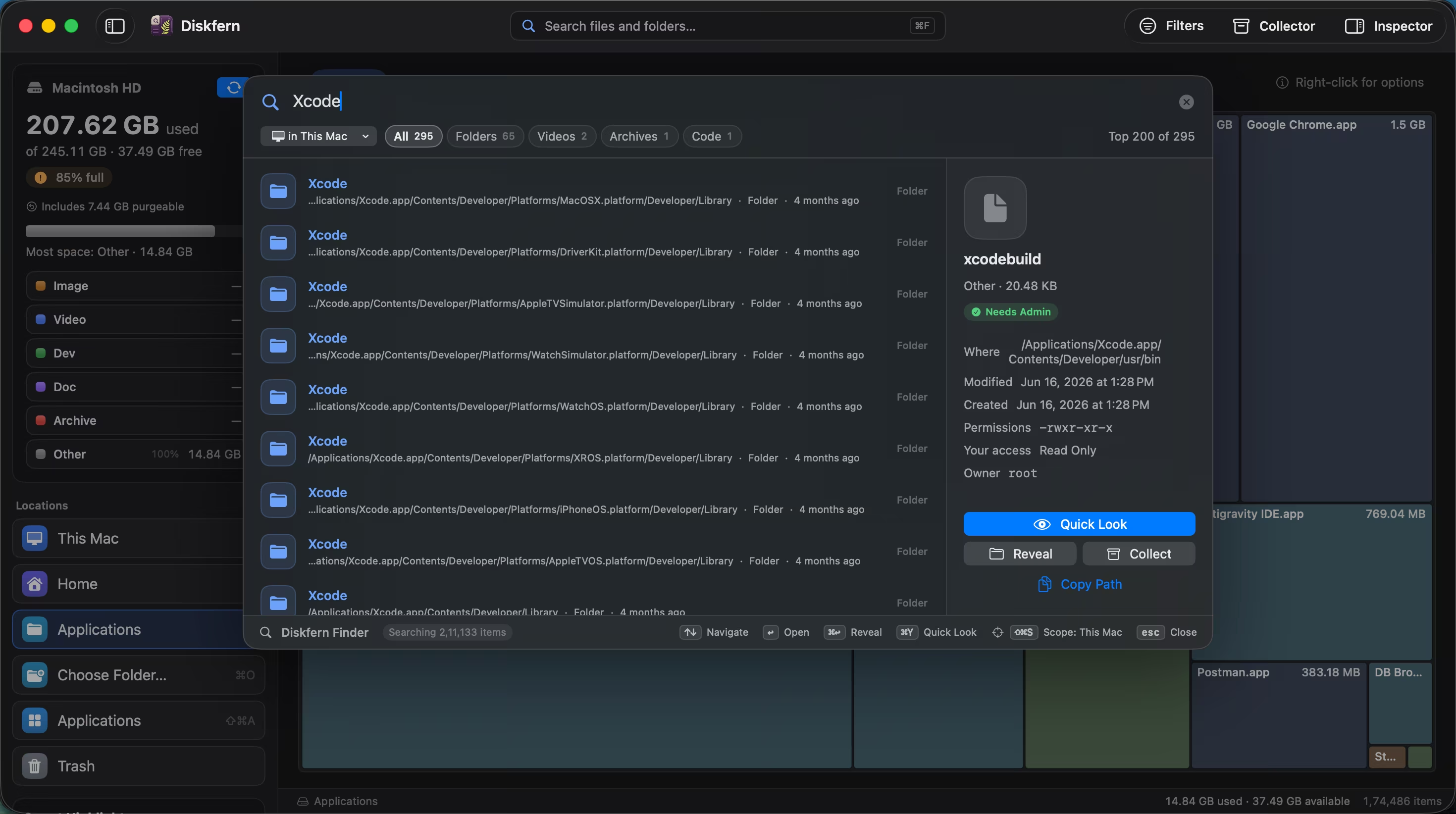
Diskfern Finder search listing results for a name
Search like Finder, with sizes.Every scanned name is searchable as you type, with Folders, Documents, Images, Videos and more as quick filters.
Quick Look opened from a search result
Preview straight from the results.Open Quick Look on any result for the same facts and actions: reveal it, copy its path, or collect it.

Disk Advisor

Not sure what a folder is? Ask.

Disk Advisor answers from your scan, in plain language, on your Mac. It explains and suggests; you decide.
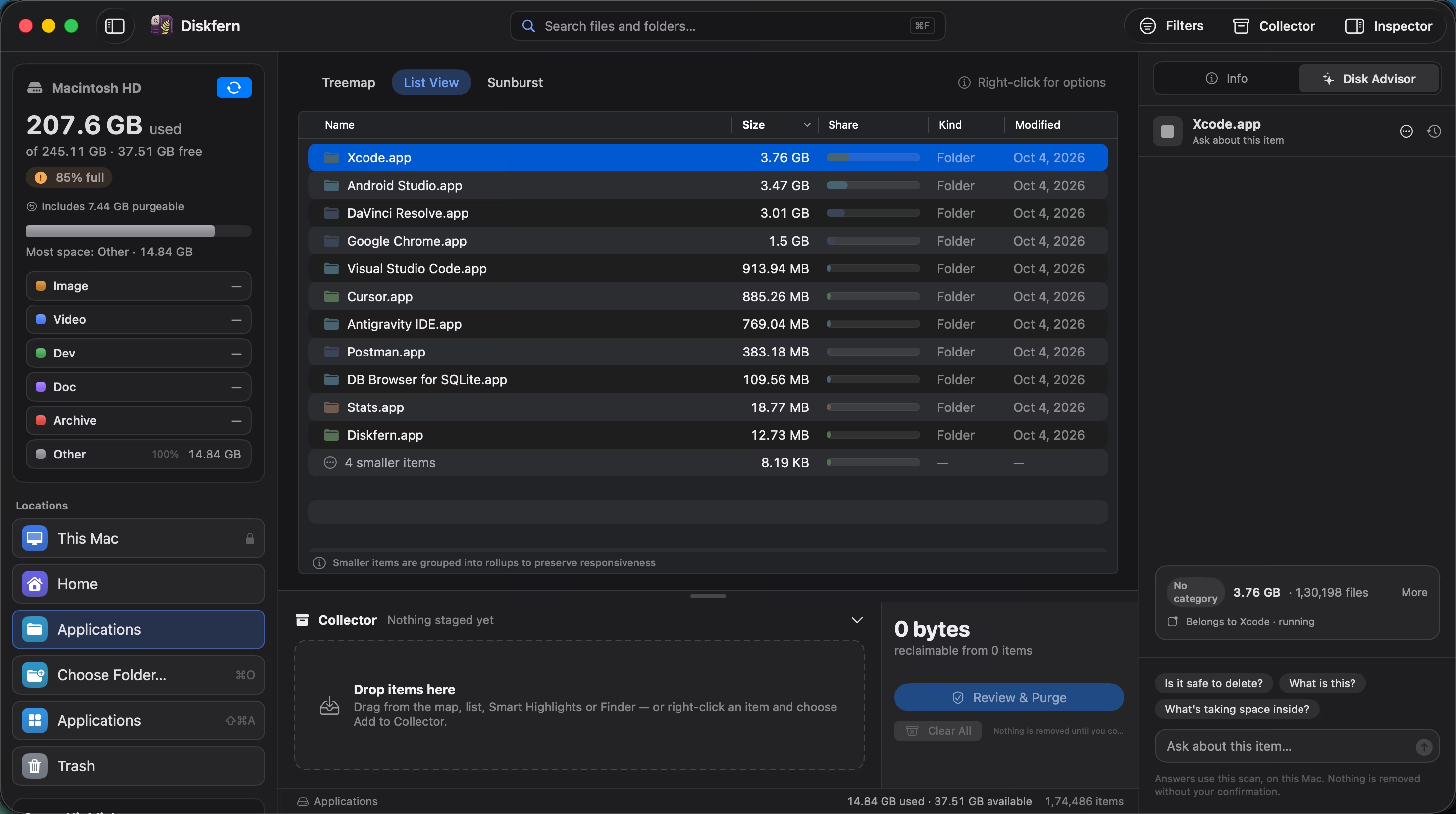
Disk Advisor tab in the Inspector with suggested questions
Right next to the map.Select an item and open Disk Advisor. It starts with what Diskfern knows and suggests questions to ask.
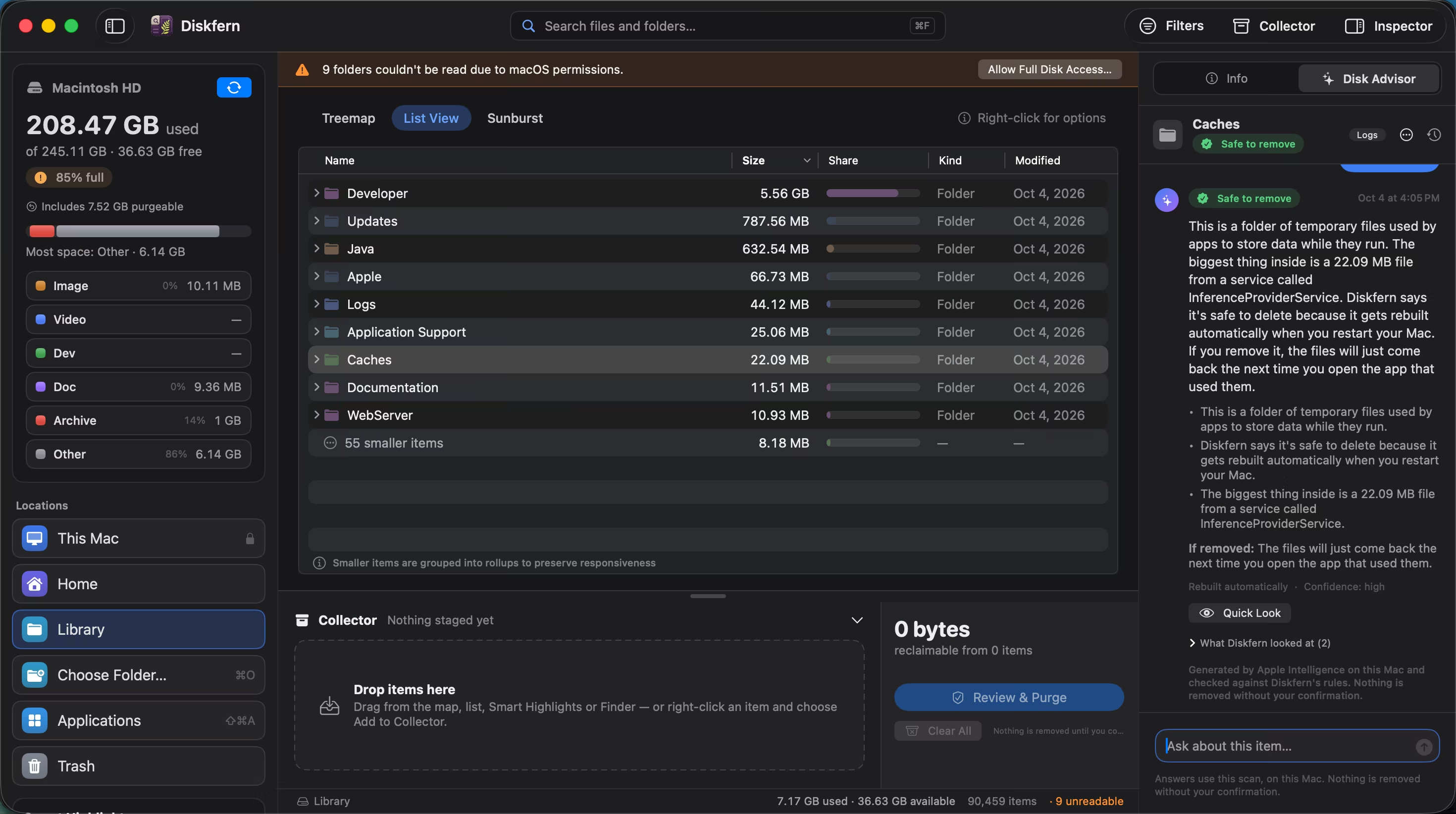
Disk Advisor answering whether a folder is safe to delete
Answers you can act on.Ask “What is safe to delete here?” and get a clear verdict with the reasons, based on your own files.

Every app, with its real size.

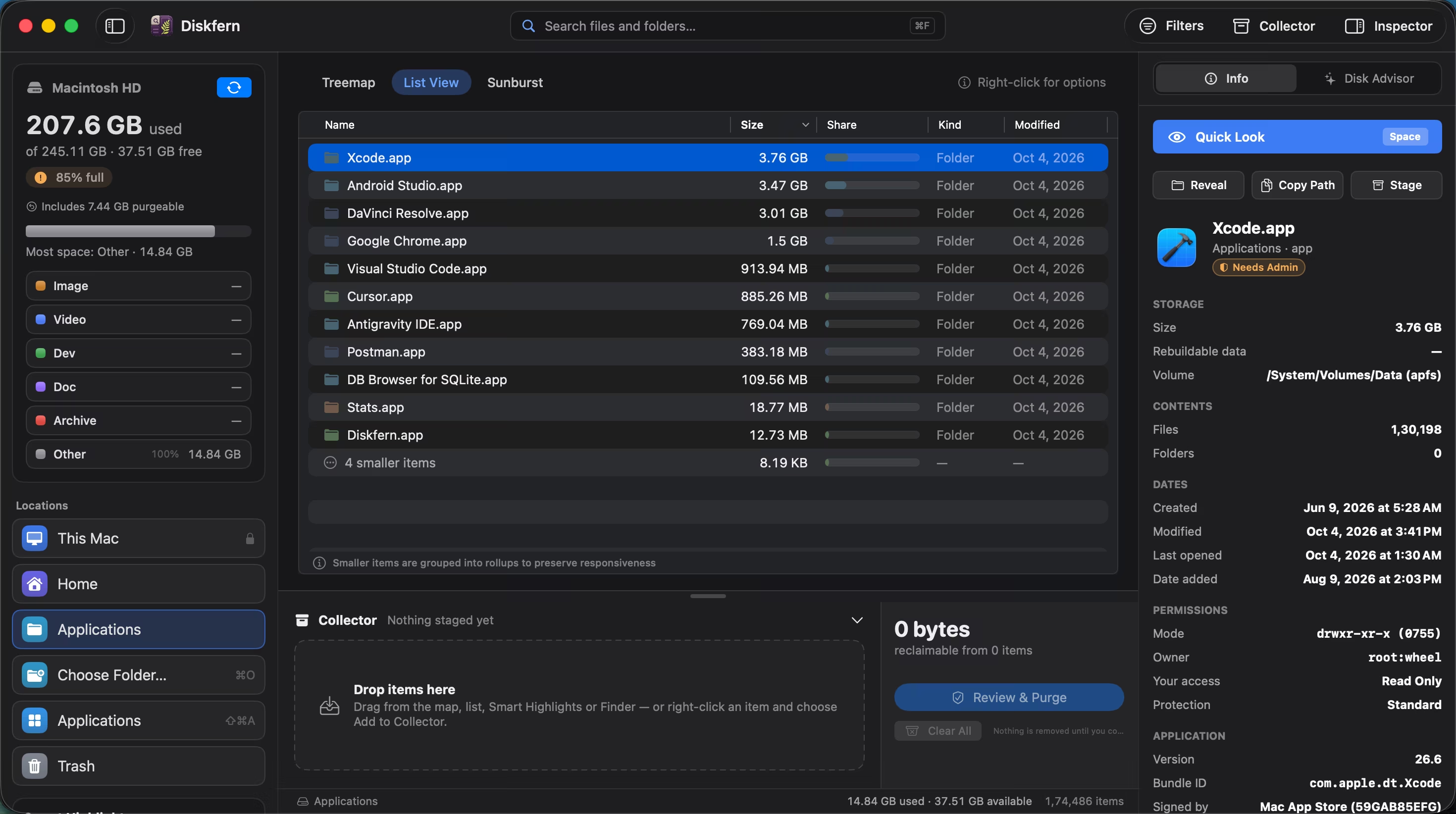
See all your apps, including the ones outside the Applications folder, sorted by the space they take. Uninstall the ones you don't use; they go to the Trash.
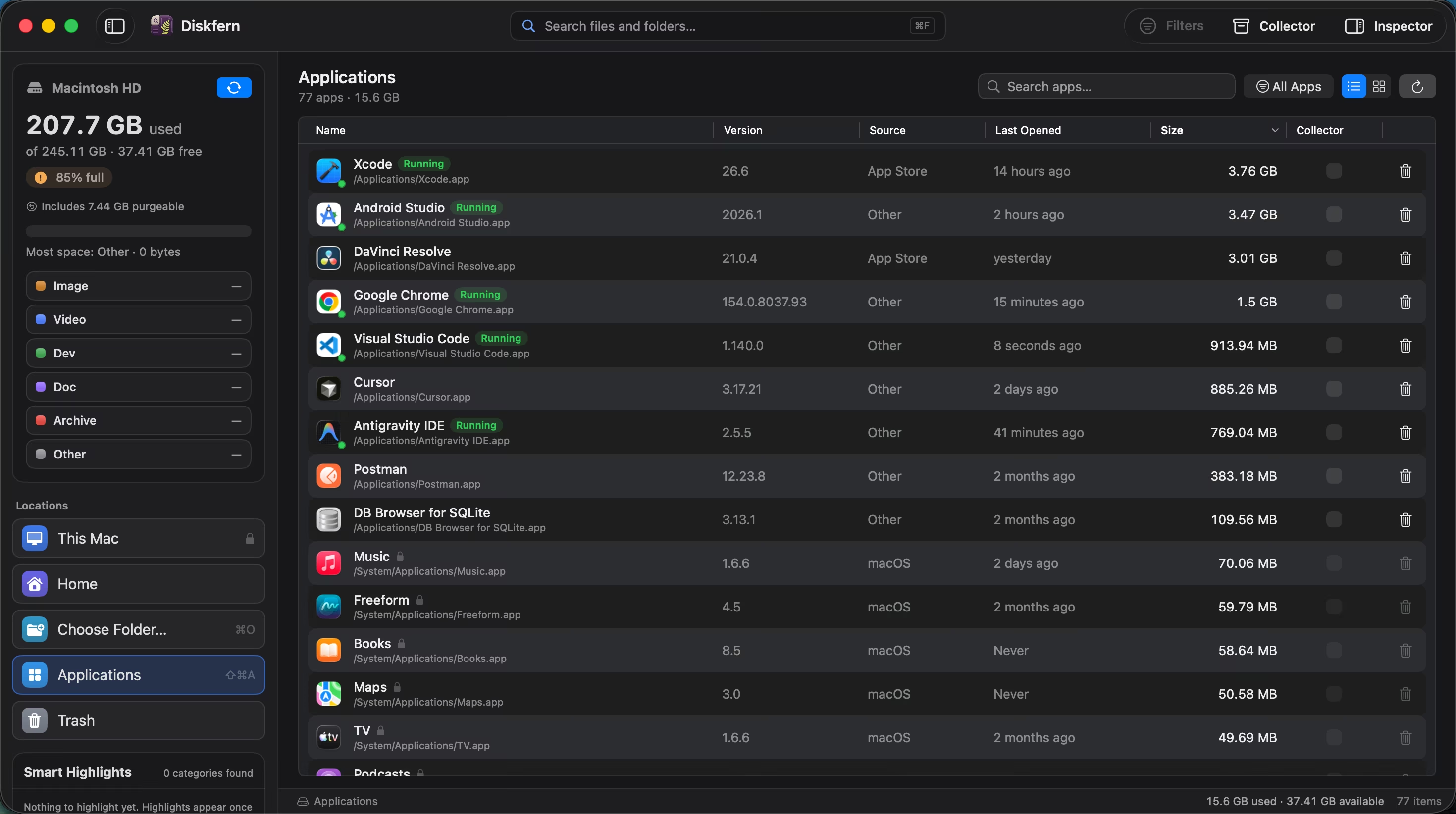
Diskfern Applications view: 76 apps with their sizes, Xcode and Android Studio first

Built to be trusted with your files.

A cleaner touches the things you care about. Diskfern is designed so nothing happens without you seeing it first.

Trash, not erase.

Standard cleanup moves approved items to the Trash. Review them before emptying it; Trash is not a backup.

Your files stay on your Mac.

No account needed and no upload. Optional crash reports never include file names, paths or license keys.

Protected stays protected.

System and SIP-protected locations are never offered for removal.

Advice that knows your disk.

On supported Macs, Disk Advisor explains scan facts and can stage items for review. Removal still needs your confirmation.
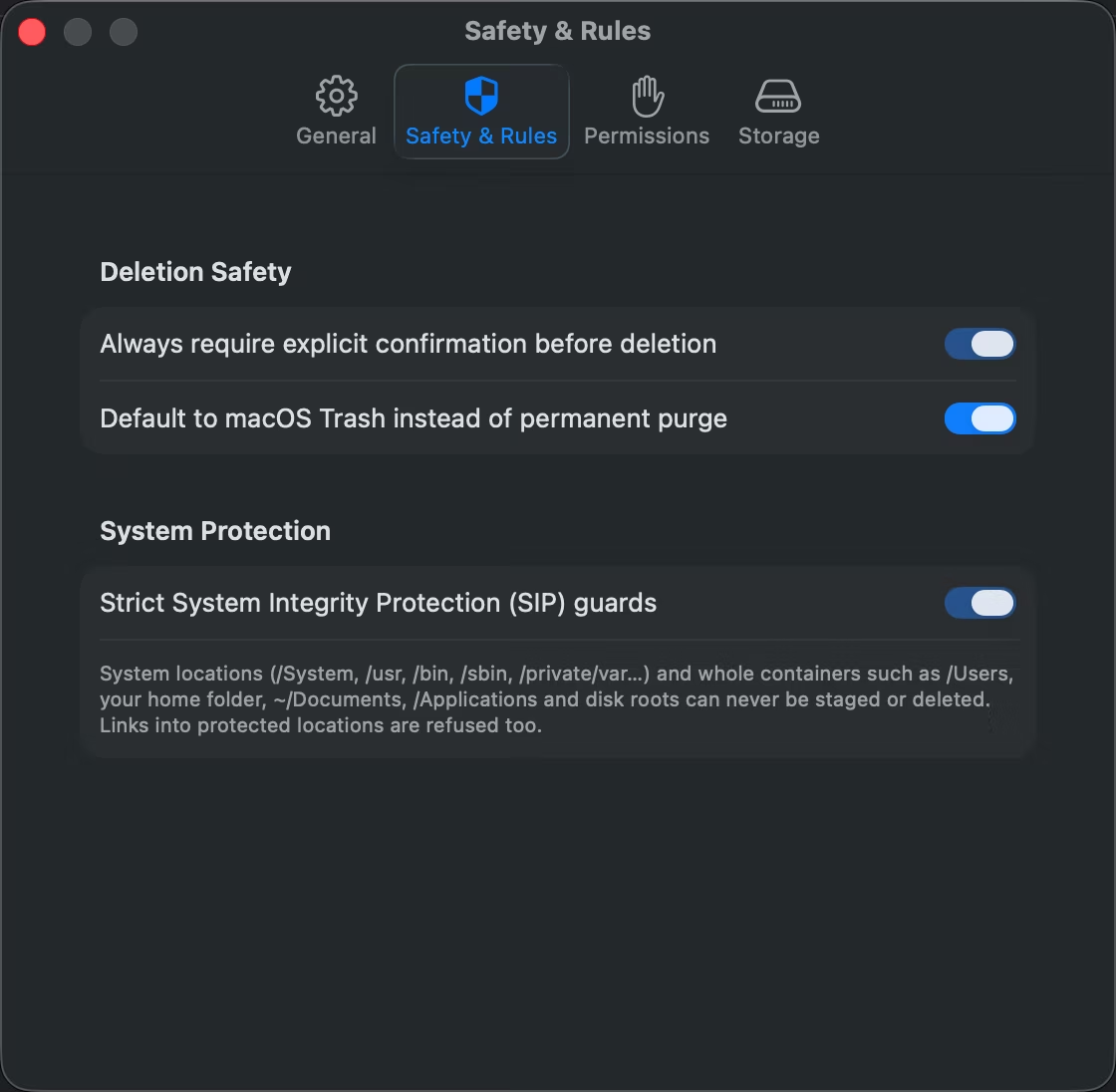
Safety & Rules settings: confirmation before deletion, Trash by default, strict SIP guards
Safety & Rules.Always confirm before deleting, use the Trash by default, and never touch system locations.
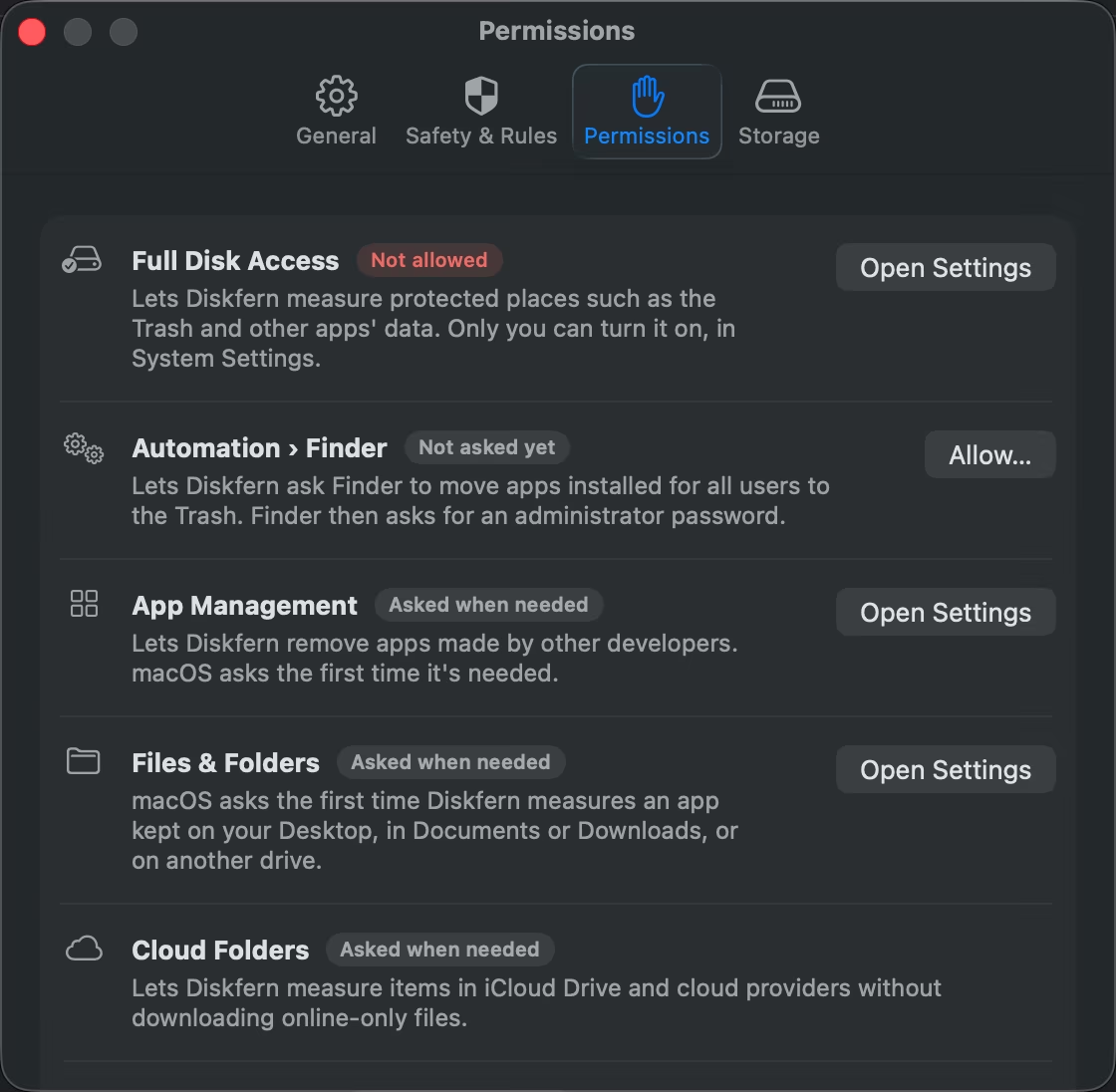
Permissions settings with the live status of Full Disk Access and other permissions
Permissions, explained.See which permissions are allowed and why each one matters, with a button to the right System Settings pane.
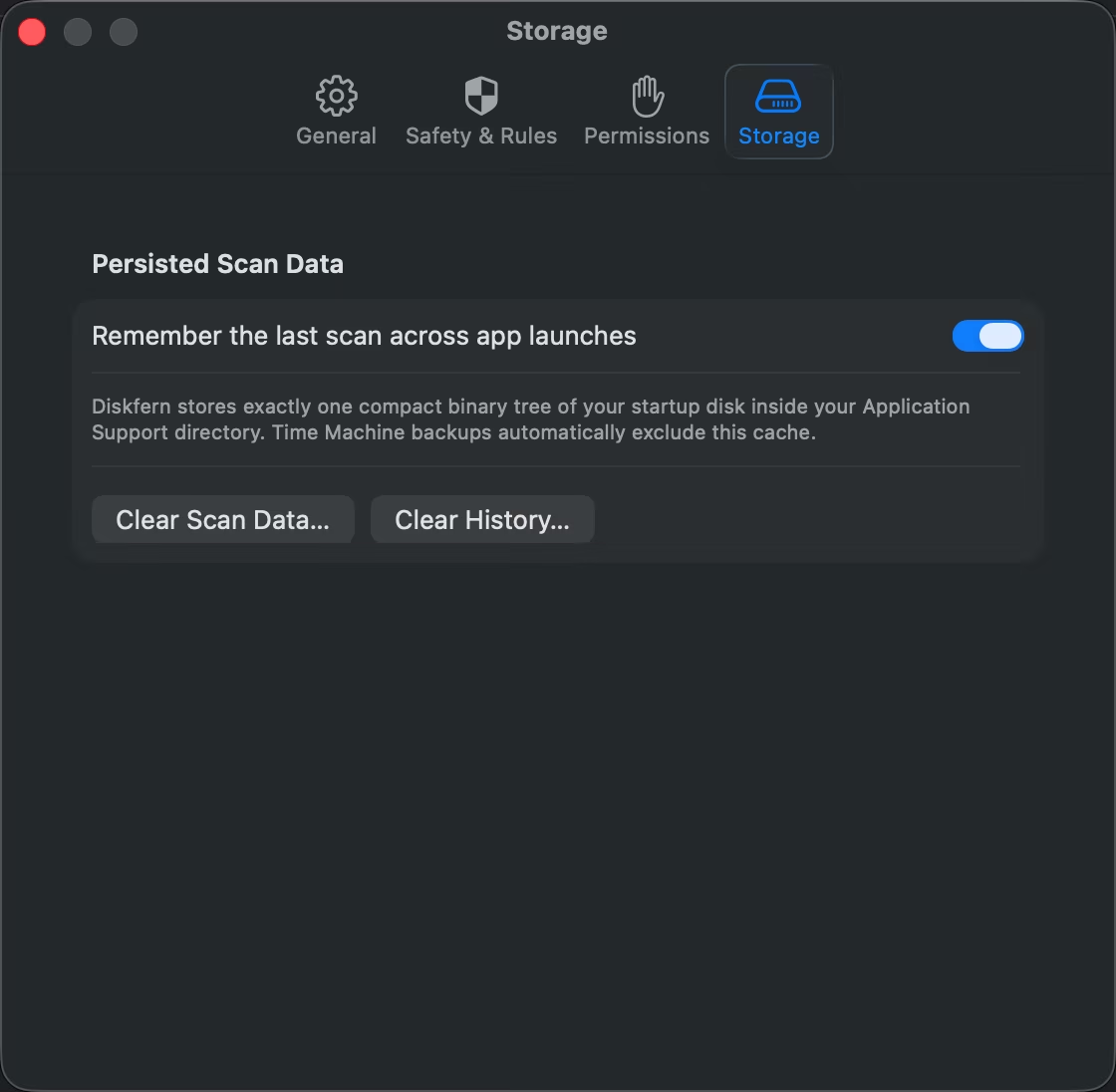
Storage settings: remember the last scan, clear scan data, clear history
Your data, your call.Keep the last scan between launches, or clear scan data and history whenever you like.
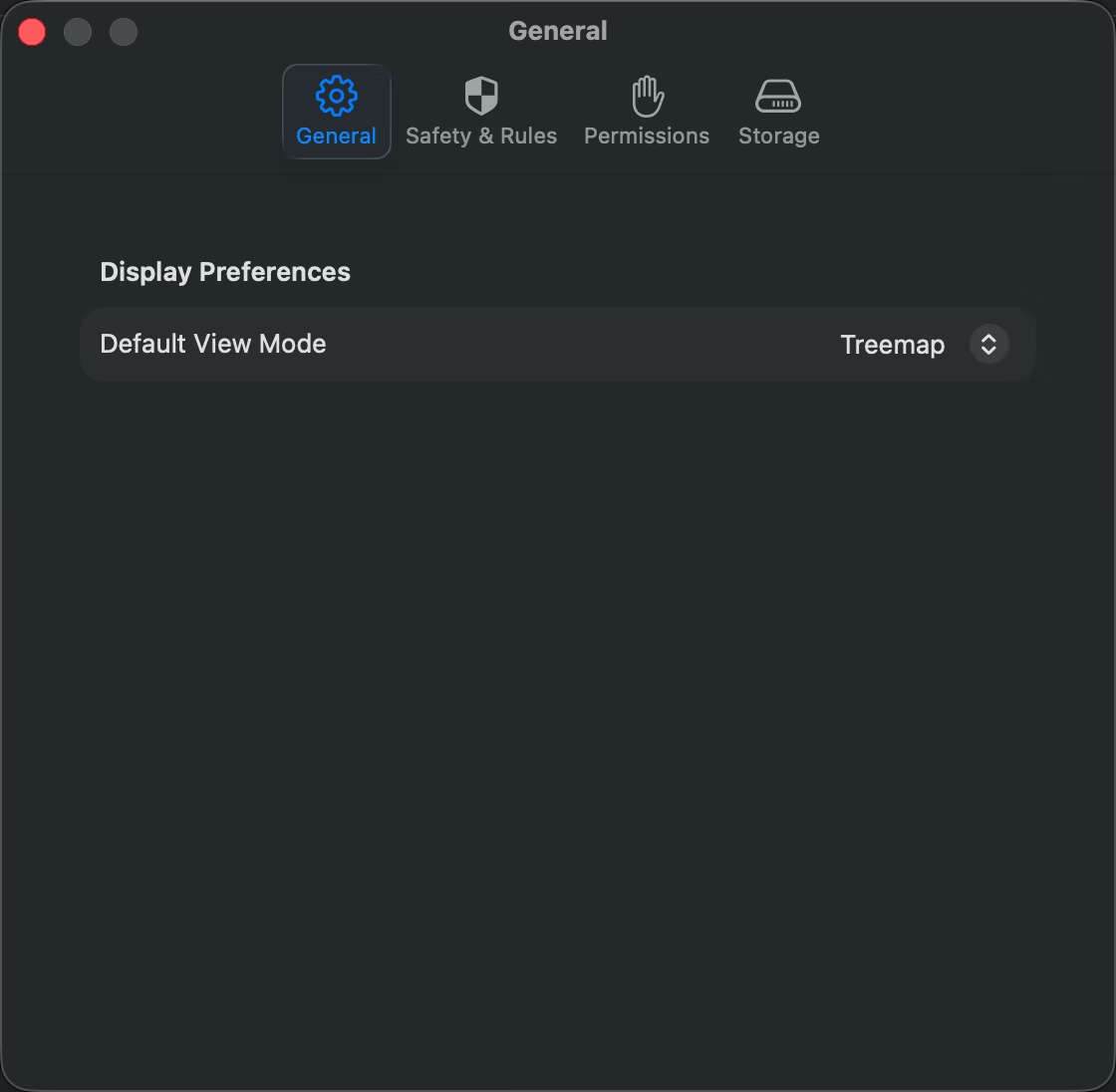
General settings with the default view mode
Make it yours.Choose the view Diskfern opens with: treemap, list or sunburst.

For developers

Knows where your toolchains hide space.

Build output, simulators, emulator images, package caches and local models show up by name, with the real path, instead of one vague System Data bar.

Explore developer storage
  • Xcode
  • iOS Simulators
  • Android Studio
  • Gradle
  • Node.js
  • CocoaPods & packages
  • Python
  • Rust & Go
  • Maven & Composer
  • Docker
  • Local AI models
  • Editors & IDEs

Seeing is free. Cleaning is Pro.

No subscription. Map your own disk first, then decide.

Start here

Free

Find out what is taking space

$0forever

Free forever · Start with your own disk

A complete view of your storage before you pay anything.

  • Unlimited read-only disk scans
  • Treemap, list and sunburst views
  • Diskfern Finder: natural search ("videos > 1gb", "pdf this month")
  • 44 Smart Highlights with one-click highlight
Join the waitlist

No payment required to join

For regular cleanup

Pro Lifetime

Turn storage insights into cleanup

Available at launch

One-time purchase · No recurring bill

Review and clear clutter in one workflow, without a subscription.

  • Everything in Free
  • Disk Advisor AI (macOS 26 + Apple Intelligence)
  • Collector with cleanup totals & batch review
  • One-click Stage Safe for rebuildable clutter
Join the waitlist

No payment required to join

Best value for 5 Macs

Family Lifetime

The full Pro toolkit for your household

Available at launch

One-time purchase · Up to 5 household Macs

Shared across up to five household Macs with one payment.

  • Every Pro cleanup feature & Disk Advisor AI
  • Up to 5 Macs in one household
  • Collector and Stage Safe on each Mac
  • App uninstaller & Disk Advisor AI on each Mac
Join the waitlist

No payment required to join

Prices in USD. Compare plans ›

Questions, answered.

Is Diskfern safe to use?

Scanning only reads your disk. Cleanup is a separate step: you collect items, review them, and Diskfern moves them to the Trash by default. System-protected items are never offered for removal.

Does anything leave my Mac?

Your files and storage analysis don't. File names, paths and sizes are analysed on your Mac, and Disk Advisor uses Apple's on-device model. If Diskfern crashes, it can send a limited technical crash report (app version, macOS version, Mac model and the error) to Sentry, our crash-reporting provider. Reports never include file names, paths, file contents, searches or license keys, and you can turn them off in Settings › Privacy. Activating a paid license and checking for updates also contact our servers; the Privacy Policy lists exactly what they send.

Why does it ask for Full Disk Access?

Full Disk Access lets Diskfern read more protected folders, including some app data. Permissions, unavailable locations and filesystem accounting can still limit a scan. Diskfern never bypasses macOS protections.

Which Macs does it run on?

Any Mac with macOS 14 Sonoma or later, Apple silicon or Intel. Disk Advisor's answers need macOS 26 with Apple Intelligence; everything else works on every supported version.

What's free and what's Pro?

Scanning, the treemap, list and sunburst, search, filters, Smart Highlights and Quick Look are free forever. Collector cleanup, one-click Stage Safe, the app uninstaller and Disk Advisor are Pro.

Is it a subscription?

No. Pro and Family are one-time purchases, and you can ask for a refund within 30 days.

Get your space back. Start with a free scan.

Explore the files and folders Diskfern can read. Your files stay on your Mac, and nothing is removed until you say so.

macOS 14 Sonoma or later · Apple silicon and Intel