 Diskfern
System Data & macOS
Found a Huge File or Folder on Your Mac? Here's How to Decide If It's Safe to Delete
Finding a large folder is only step one. Before you delete it, understand who owns it, whether it can regenerate, what happens if it disappears, and whether removing it is actually worth your time.
 Diskfern Team8 min readUpdated
 Short answer
Do not delete a Mac file just because it is large. First check who created it, whether the app or macOS still uses it, whether the data can be recreated or downloaded again, whether deletion will sync to another device, and whether you have a recovery path. Identified rebuildable caches, old installers you can replace, and disposable build output are often lower risk. Application data, containers, cloud-synced files, passwords, mail, and unknown system folders need review first.
The rule: finding a large file is not permission to delete it
A visual treemap or storage list tells you where disk space is being consumed, but file size alone carries zero context about purpose or consequence. For example, a large folder inside ~/Library/Application Support might be an active database, while a smaller cache may be rebuildable. These are illustrative cases, not measured cleanup results. Deleting items simply because they appear at the top of a size-sorted list can break applications or remove work you cannot recover. Storage management must always be a decision about ownership, consequence, and replaceability, not raw gigabytes.
Size is an engineering property, not a disposal tag
Just because a file occupies 25 GB does not mean it is junk. Large files often hold active local databases, offline media libraries, virtual machine disks, or indexed search records.
The five questions to ask before deleting anything
Whenever you encounter a large, unfamiliar file or folder on your Mac, run it through this five-step evaluation framework before staging it for removal: 1. Who created it? Look at the path hierarchy and enclosing folder names. A file in ~/Library/Containers/com.apple.Notes belongs to Apple Notes, while an item in ~/Downloads was placed there by your browser. 2. Is it rebuildable? Caches, build artifacts, and downloaded installer packages can usually be re-created or downloaded again. Local application databases, preferences, and personal media cannot. 3. Is the owning app still installed? An uninstalled app can leave valuable documents, databases, licenses, or shared data behind. Removing the app does not prove that its support folder is disposable. 4. Is it synced or shared? iCloud Drive, Dropbox, and OneDrive can propagate deletion to other devices. Group Containers are shared app storage, and an app may also sync some of their contents; check the owning apps before changing them. 5. How would you recover it? Do you have a verified backup or an app export? The Trash may help restore a known local file, but it is not a backup and cannot guarantee recovery of shared or synced data.
Safe to delete is not the same as worth deleting
Many Mac cleanup guides collapse every file into a binary safe or unsafe label. In practice, storage decisions require evaluating both risk and benefit. As an illustration, clearing a small rebuildable cache may give little lasting space, while a large virtual disk could contain a database or project you still need. Verify contents and backups before removing a virtual disk, even when it is old. Prioritize known disposable data with a useful storage benefit.
The two-dimensional evaluation model
Evaluate items across two axes: Risk (Low, Review first, Leave alone) and Reclaim Value (Worth reclaiming vs Low-value cleanup). Do not waste effort clearing dozens of tiny temporary files.
Common Mac storage findings and what they actually mean
Here is what you are actually looking at when common large items surface in your disk analyzer: • Downloaded .dmg and .pkg files: Usually low risk once the application is installed and confirmed working. Keep them only if you need offline archives of specific older software versions. • ~/Library/Caches: Re-creatable temporary data generated by apps to speed up repeated operations. Clearing a cache can resolve app glitches or free immediate space, but active apps will rebuild it as needed. • ~/Library/Application Support: Contains persistent application state, presets, local databases, and offline content. Never wipe the parent folder. Inspect individual subfolders and confirm what they contain before considering removal. • ~/Library/Containers: Private data for sandboxed apps. Notarization and sandboxing are separate controls, so a notarized app does not necessarily use a container. Containers can hold persistent documents and settings alongside caches. • ~/Library/Group Containers: Shared directories accessible by multiple related applications, extensions, and widgets from the same developer. Deleting one can break widgets or sync across companion apps. • ~/Library/Developer: Xcode DerivedData, iOS device support symbols, and simulator runtimes. Size varies with installed tools and projects. DerivedData is rebuildable; manage unneeded simulators in Xcode and check for simulator data you need first. • System and SIP-protected data: macOS protects core locations such as /System, /usr, /bin, and /sbin, with exceptions such as /usr/local. Do not disable protections or remove system components to free space.
What to do when you still cannot identify a file
When you inspect an unfamiliar file and cannot verify its owning application, purpose, or consequence, the safest decision is to leave it alone or research it before taking action. Reliable storage tools should be honest about uncertainty: if an item has no clear metadata, signature, or known bundle identifier, no software should give it a blind green badge. Leave unidentified files in place while you check the owning app's documentation or ask its support team. Moving an unknown file can itself break an app or sync a deletion. A week without visible errors does not prove that a file is no longer needed.
How Disk Advisor helps you understand a selected item
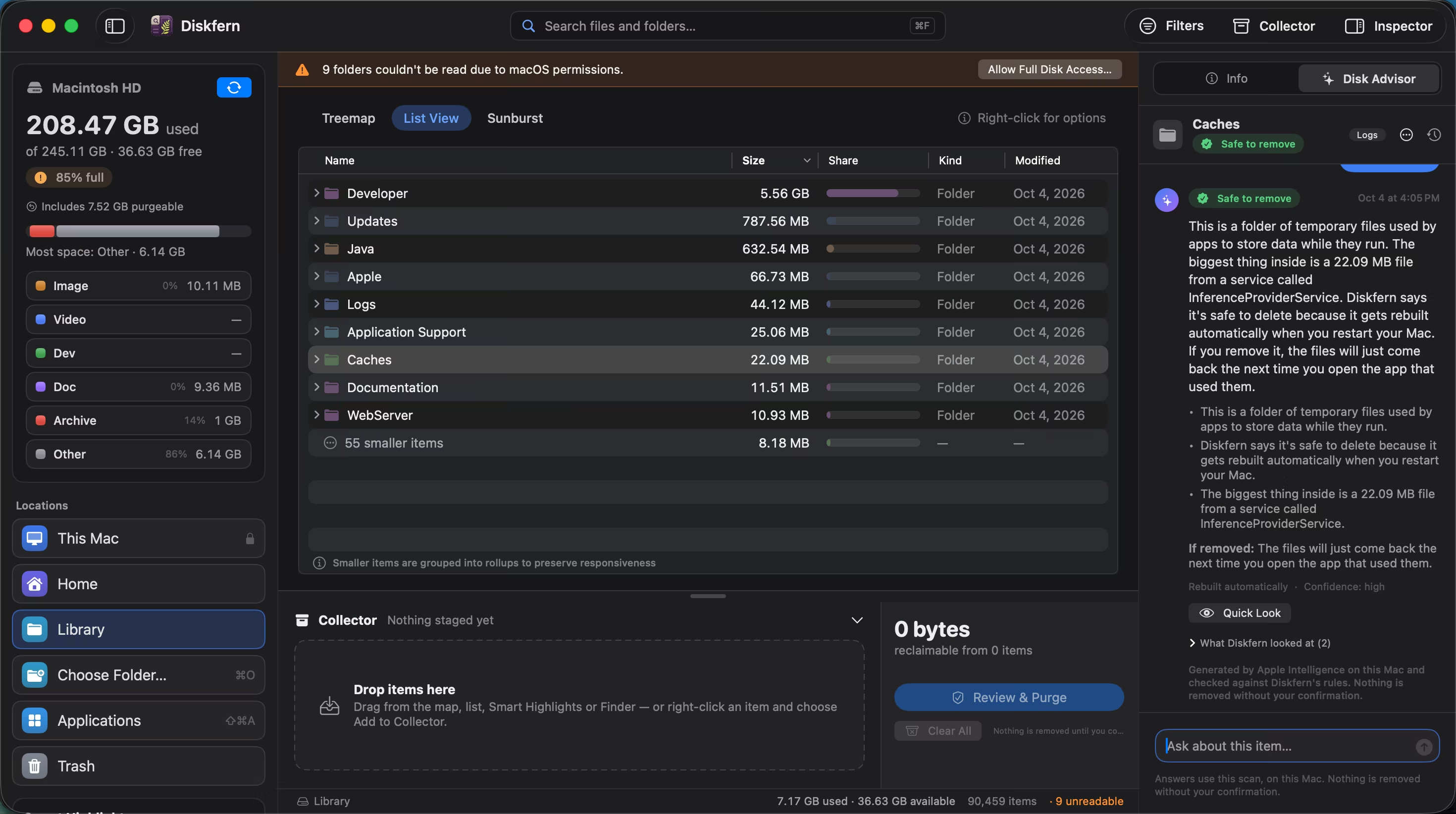
A traditional disk space analyzer only answers where your storage went. Diskfern includes Disk Advisor to help answer the crucial second question: what is this item, and what happens if I remove it? Disk Advisor uses local scan facts and Apple's on-device model to explain a selected item, ownership clues, and possible removal consequences. Available with Pro on macOS 26 or later with Apple Intelligence, it can stage or unstage eligible items and open the Collector when asked. It does not remove files itself; removal requires your separate review and confirmation. Its explanations can be wrong.
What’s safe to delete?
Downloaded installer files (.dmg, .pkg)
Safe to reclaim~/Downloads
No effect on your installed apps. The installer image is no longer needed after installation is complete.
How: Move the installer file to the Trash from Finder.
Rebuildable application caches
Usually safe~/Library/Caches/<app-bundle-id>
Apps rebuild their caches automatically. The app may take a moment longer to load on its next startup.
How: Close the app, then remove its specific cache subfolder to the Trash, or use Diskfern Smart Highlights.
Leftovers from uninstalled applications
Review first~/Library/Application Support/<app-name>
May remove saved documents, databases, licenses, or shared state even after the app is uninstalled.
How: Identify the folder's owner and contents, check for shared data, and back up anything needed. Prefer the vendor's removal instructions.
Active application support databases
Review first~/Library/Application Support/<active-app>
Can delete your saved notes, offline documents, account configurations, or local history for that app.
How: Do not delete manually. Use the owning application's built-in data management or export tools.
Sandboxed app container folders
Review first~/Library/Containers/<bundle-identifier>
May delete local documents, cached files, and preferences for that sandboxed application.
How: Inspect its contents and all owning apps. Do not remove a whole container merely because an app was uninstalled; export or back up data first.
Shared group container directories
High caution~/Library/Group Containers/<group-identifier>
Carries a wide blast radius. Deleting can corrupt shared state across multiple related apps, extensions, or widgets.
How: Identify all apps sharing the group ID and their stored data. Follow their removal instructions and keep a backup, or leave it intact.
Local iOS and iPadOS device backups
Review first~/Library/Application Support/MobileSync/Backup
Removes previous local backups of your iPhone or iPad. Does not affect backups stored in iCloud.
How: Connect the device, select it in Finder, open General → Manage Backups, and remove only a backup you no longer need.
Xcode DerivedData build artifacts
Safe to reclaim~/Library/Developer/Xcode/DerivedData
Xcode will recompile source files and rebuild indexes on the next project build. Build times will be longer initially.
How: Clear via Xcode (File → Workspace Settings) or move project folders in DerivedData to the Trash.
Protected macOS system binaries and frameworks
Don't touch/System, /Library/CoreServices, /usr
Corrupts macOS and prevents the Mac from booting normally. Protected by System Integrity Protection.
How: Never touch or bypass system protections. Diskfern automatically excludes these from cleanup staging.
macOS Keychain credentials and certificates
Don't touch~/Library/Keychains
Destroys saved passwords, website credentials, and encryption certificates.
How: Leave intact. Manage passwords exclusively through System Settings → Passwords or Keychain Access.
Why Diskfern uses the Trash
Direct deletion cannot be undone. Moving candidate files to the macOS Trash gives you a safety net if an application unexpectedly requires a removed file.
Cloud syncing caution
Folders synced through iCloud Drive, Dropbox, or OneDrive will synchronize deletions to the cloud and your other devices. Never delete synced files locally unless you intend to delete them everywhere.
Never force-delete unknown system files
Bypassing macOS protections or running destructive terminal commands on /System or /Library will corrupt your operating system. System files should never be manually removed.
Do it manually
No app needed. These steps use Finder, Terminal, and each tool’s own settings.
- 1
Quit the owning application completely before touching any of its files.
Press Command-Q in the app, or verify it has terminated in Activity Monitor.
- 2
After identifying a disposable local file, use Finder's Move to Trash rather than a permanent deletion command.
Leave unknown files in place. Terminal moves do not provide Finder's usual Put Back behavior; Trash also does not reverse every cloud-sync effect.
- 3
Relaunch the owning application and test its primary workflows.
Verify that your settings, accounts, and recent documents open without errors.
- 4
Keep a recoverable copy until you have verified the data is no longer needed.
For items moved through Finder, Put Back may restore the original location. Testing for several days cannot prove that infrequently used data is disposable.
- 5
Maintain a verified Time Machine or external backup before performing major storage cleanup.
Verify that the backup actually contains the files you need and that you can restore them. A snapshot or synced copy is not a guarantee.
The Diskfern way
How Diskfern helps
Diskfern combines a high-speed visual map with Disk Advisor so you can understand files before deciding what to do.
- Open Diskfern and select any large file or folder in the treemap, list, or sunburst view.
- On an eligible Mac with Pro, ask Disk Advisor about ownership clues, purpose, and whether the data may be rebuildable.
- Check the plain-language consequence explanation and determine if app-native cleanup is recommended.
- Stage confirmed candidates to the Collector, review the summary, and send them to the Trash only after your approval.
Finding and reviewing is free. Moving items to the Trash from Diskfern is part of Pro.
Inspect files with DiskfernQuestions
How do I know if a large file on my Mac is safe to delete?
Check who created it, whether the owning app is still installed, whether the file is re-creatable (like a cache or installer), and whether deleting it will sync to other devices. If it is personal work, an active database, or an unknown system component, leave it alone.
Can I delete files in ~/Library to free up space?
You should never delete ~/Library as a whole or wipe parent directories like Application Support or Containers. However, specific caches may be rebuildable, while support folders can hold valuable data after an app is removed. Identify contents and keep a backup before removing anything.
What happens if I delete an app's cache folder?
Apps store temporary data in caches to speed up performance. Deleting a cache will cause the app to recreate its temporary data on next launch, which may result in a brief initial delay but will not delete your documents or settings.
Is Disk Advisor's safety guidance guaranteed?
No automated tool can provide a universal safety guarantee for every arbitrary file. Disk Advisor grounds its advice in scan facts, file attributes, and Apple on-device models, but can stage or unstage eligible items in the Collector when asked. It does not delete files; you separately review and confirm removal.
What should I do if I cannot identify who owns a huge file?
Leave it in place. Check the path, app documentation, and backup contents, or ask the owning app's support team. Moving it to a quarantine folder or Trash can still disrupt an app or sync changes; elapsed time without errors is not proof of safety.

Written by
Diskfern Team
We explain Mac storage using product behavior and the sources listed below. Review your app settings and backups before removing data.
Sources
- Apple Support: Manage storage space on your Mac · checked October 18, 2026
- Apple Developer: File System Basics · checked October 18, 2026
- Apple Developer: App Sandbox Design Guide · checked October 18, 2026

Get your space back. Start with a free scan.
Explore the files and folders Diskfern can read. Your files stay on your Mac, and nothing is removed until you say so.
macOS 14 Sonoma or later · Apple silicon and Intel