 Diskfern
System Data & macOS
What Is System Data on Mac? (And How to See What's Inside It)
"System Data" (once called "Other") is the biggest mystery in About This Mac. It is not one folder. It includes everything that does not fit Apple's other categories.
 Diskfern Team8 min readUpdated
 Short answer
System Data is a catch-all bucket in macOS's storage view. It includes caches, logs, system files, Time Machine local snapshots, Spotlight indexes, VM swap files, and app support files that don't count as "Documents" or "Apps." Most of it is normal and self-manages. A disk-space analyzer helps inspect readable folders, but its totals need not match macOS category accounting.
Why is System Data so big on my Mac?
Apple's built-in storage view (System Settings → General → Storage) groups anything it can't confidently classify into "System Data." On developer Macs this often includes Xcode DerivedData, simulator runtimes, Docker virtual disks, container caches, and large app-support folders for tools like browsers and IDEs. This is not a single deletable folder. It is dozens of unrelated items added together, which is why the built-in view cannot explain it well.
This isn't a bug
A large System Data number is common on machines with a lot of installed developer tools, VMs, or caches. It isn't a sign something is broken.
Is it safe to delete System Data?
You cannot delete "System Data" directly because it is not a folder you can open and empty. Review specific known items, such as rebuildable caches or disposable logs, using the owning app's controls. App support folders may contain valuable data after uninstall. Let macOS manage local Time Machine snapshots; their space is counted as available and macOS removes them as needed. Never delete anything inside /System, /Library/CoreServices, or other OS-owned locations. macOS protects most of these automatically through SIP (System Integrity Protection), and you should avoid tools that claim to bypass it.
Don't touch /System
Files inside /System and other SIP-protected locations are not meant to be removed by hand. macOS blocks most such attempts; don't try to work around that.
How do I see what's actually inside System Data?
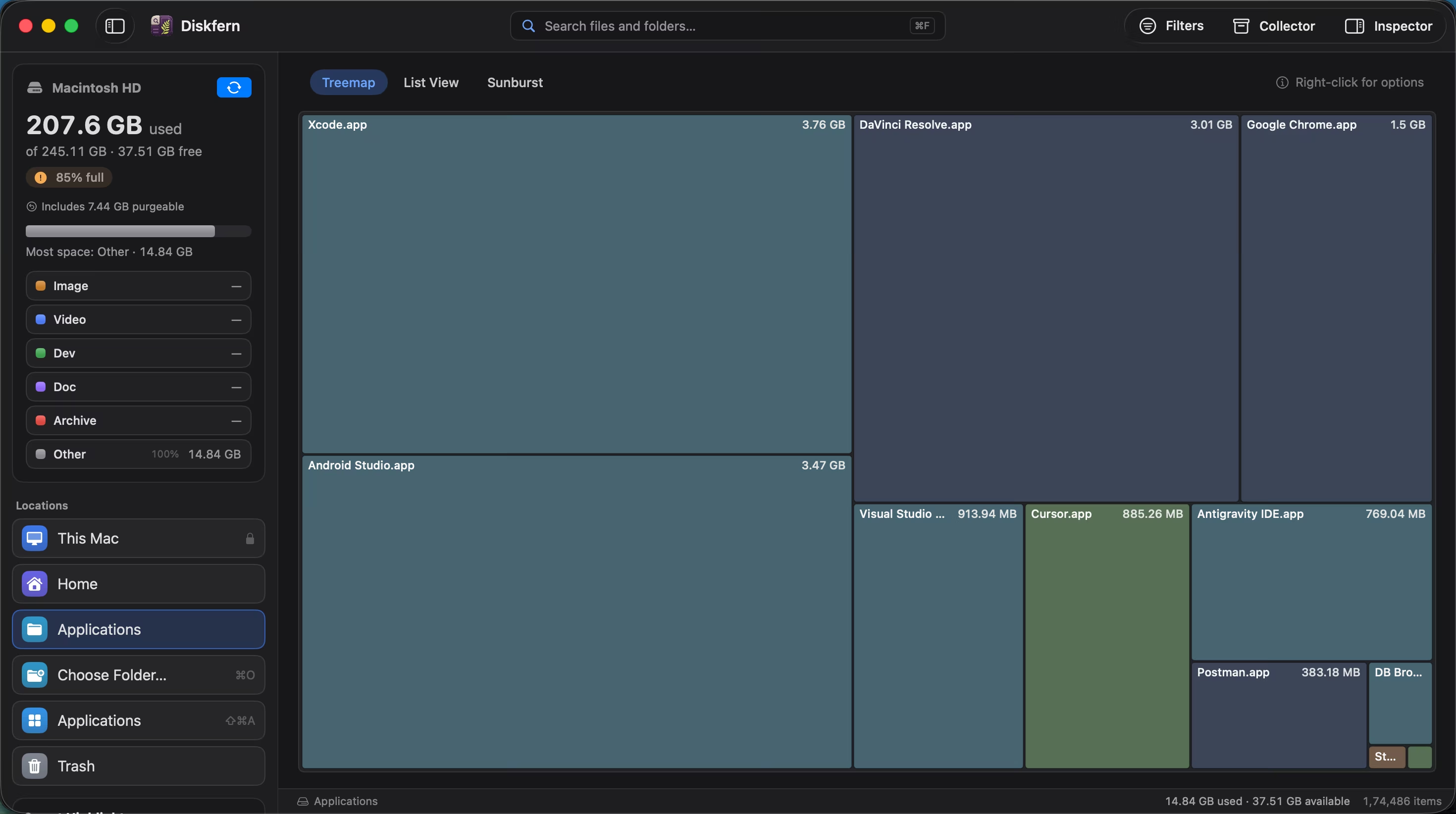
Finder's "Manage Storage" window groups by app category, not by what's really using space, so it often leaves a large, unexplained remainder. A disk-space analyzer can map readable files and folders, making caches, virtual disks, and simulator runtimes easier to inspect. Full Disk Access improves visibility, but protected locations, APFS snapshots, purgeable space, and accounting differences can prevent a scan from matching the System Data total in macOS.
What’s safe to delete?
User cache files
Safe~/Library/Caches
Apps rebuild their caches automatically; you may notice a brief slowdown the next time you open them.
How: Clear via Finder (Go → Go to Folder → ~/Library/Caches) or a disk-space analyzer's Smart Highlights.
Old log files
Safe~/Library/Logs
Removes diagnostic history that you or a support team may still need.
How: Move to Trash from Finder.
Leftover files from uninstalled apps
Review first~/Library/Application Support, ~/Library/Containers
May remove saved documents, databases, licenses, or shared data even after the parent app is uninstalled.
How: Confirm ownership and contents, check for shared-app use, and back up needed data. Follow the vendor's removal instructions.
Local Time Machine snapshots
Review firstManaged internally by APFS
macOS purges these automatically when space is needed; manual deletion is rarely necessary and not directly exposed in Finder.
How: Let macOS manage this automatically; avoid third-party "snapshot deleter" tools that need elevated access.
System files in /System, /Library/CoreServices
Don't touchRoot volume, SIP-protected
Can break macOS. These are excluded from staging by design.
How: Never delete manually. Diskfern never offers these for removal.
Never run sudo rm -rf on system folders
Commands that force-delete system directories can corrupt your install. There is no safe reason to do this to free up space.
Do it manually
No app needed. These steps use Finder, Terminal, and each tool’s own settings.
- 1
Check the built-in breakdown first: Apple menu → System Settings → General → Storage.
- 2
Clear a specific app's cache by opening its folder in Finder.
$open ~/Library/CachesDelete individual app subfolders you recognize, not the Caches folder itself.
- 3
Remove old log files.
$open ~/Library/Logs - 4
Empty the Trash once you've reviewed what's in it.
Trash can help restore a local file moved through Finder, but is not a backup or a guarantee of recovery for synced or shared data.
The Diskfern way
How Diskfern helps
Diskfern maps readable files and folders by size, helping you investigate storage without claiming to reproduce the macOS System Data total.
- Download and open Diskfern; grant Full Disk Access when asked (it improves visibility, but does not make every protected location readable or reproduce macOS System Data totals).
- Let the scan finish and review skipped or unreadable locations alongside the results.
- Use the treemap or Smart Highlights to see caches, logs, Docker files, and leftover app data broken out individually.
- Review anything flagged Safe, move it to the Trash, and leave anything marked Protected alone.
Finding and reviewing is free. Moving items to the Trash from Diskfern is part of Pro.
See what's inside System DataQuestions
Is System Data the same as "Other" storage?
Yes. Apple renamed the "Other" category to "System Data" in recent macOS versions. The meaning is the same: a catch-all for items that do not fit Apps, Documents, Photos, or Messages.
Why does System Data keep growing?
Caches, logs, and temporary files accumulate as you use apps, install updates, and run developer tools. macOS clears some of this automatically under disk pressure, but much of it simply builds up over time.
Can I disable System Integrity Protection to delete more?
You shouldn't. SIP protects core parts of macOS from accidental or malicious modification. Disabling it to "free up space" is not a safe trade and isn't something Diskfern recommends or requires.
Will deleting cache files break my apps?
Proper caches are intended to be rebuildable, but do not infer that every unfamiliar folder is a cache. Prefer the app's own controls, close it before manual cleanup, and expect downloads or slower startup while data rebuilds.
Does Diskfern delete System Data for me automatically?
No. Diskfern shows what is inside, labels each item Safe, Review, or Protected, and moves anything you approve to the Trash. Nothing is deleted without your review.

Written by
Diskfern Team
We explain Mac storage using product behavior and the sources listed below. Review your app settings and backups before removing data.
Sources
- Apple Support: Free up storage space on Mac · checked October 19, 2026
- Apple Support: Time Machine local snapshots · checked October 19, 2026
- Apple Developer: System Integrity Protection · checked October 3, 2026

Get your space back. Start with a free scan.
Explore the files and folders Diskfern can read. Your files stay on your Mac, and nothing is removed until you say so.
macOS 14 Sonoma or later · Apple silicon and Intel