 Diskfern
System Data & macOS
Mac Storage Full? What to Delete First (Safely)
"Your startup disk is almost full" is one of the most stressful dialogs on macOS, mostly because it doesn't say what to do about it.
 Diskfern Team9 min readUpdated
 Short answer
Start with the lowest-risk, highest-reward items: the Trash, Downloads folder, app caches, and old installers. Then check developer tools (Xcode, Docker, node_modules) if you have them, and large or duplicate files. Avoid anything inside /System or Library folders you don't recognize. A disk-space analyzer makes this order obvious by showing sizes instead of guesses.
What's the safest thing to delete first?
The Trash and Downloads folder are the safest starting points because anything there was already set aside by you or the system. Empty the Trash, then sort Downloads by size and remove installers (.dmg, .pkg) you have already used. The app is installed, so the installer file serves no further purpose.
What should I check next if that's not enough?
Look at app caches (~/Library/Caches), browser caches, and, if you're a developer, tool-specific storage: Xcode's DerivedData and old simulators, Docker's virtual disk, and node_modules folders in projects you're not actively working on. Measure them and review their contents. Virtual disks and simulators can contain irreplaceable data, while rebuilding caches or dependencies may require downloads.
What should I never delete to free up space?
Don't delete anything inside /System, /Library/CoreServices, or other folders you don't recognize as belonging to a specific app you installed. Don't disable System Integrity Protection, and don't run blind 'cleaner' scripts from the internet that promise to delete 'junk files' without showing you what they are first.
Avoid blind cleanup scripts
Scripts that delete files without showing you what they are first can remove things you needed. Always review before deleting.
What’s safe to delete?
Trash contents
SafeTrash
Permanently removed. This is the final step after you have already decided to delete something.
How: Right-click the Trash icon → Empty Trash.
Installer files you've already used
Safe~/Downloads
No effect on the installed app. Only the installer file is removed.
How: Sort Downloads by size in Finder, delete .dmg/.pkg files you no longer need.
App caches
Safe~/Library/Caches
Rebuilt automatically by the app on next launch.
How: Delete per-app cache folders, or use Smart Highlights.
node_modules in inactive projects
Review firstProject folders
Reinstallable with the package manager; make sure you won't need the project offline before deleting.
How: See "Delete node_modules on Mac" guide.
Old iOS Simulator runtimes
Review firstXcode → Settings → Platforms
Re-downloadable, but requires network access and time.
How: See "Clear Xcode storage" guide.
Anything inside /System or unfamiliar Library folders
Don't touchRoot volume
Can break macOS or an app you rely on.
How: Leave alone. Diskfern excludes SIP-protected items from staging.
There's no single magic folder
A full disk may reflect many categories or a few large items. Measure your own storage rather than assuming there is one disposable folder.
Do it manually
No app needed. These steps use Finder, Terminal, and each tool’s own settings.
- 1
Review the Trash and recover anything needed before emptying it.
Empty Trash permanently removes its contents. Keep a separate backup for data you may need.
- 2
Sort Downloads by size and remove old installers.
$open ~/Downloads - 3
Check System Settings → General → Storage for Apple's built-in recommendations.
- 4
If you're a developer, check Xcode, Docker, and node_modules sizes next (see the linked guides below).
The Diskfern way
How Diskfern helps
Diskfern maps readable folders by size and provides safety labels. Review actual contents and consequences before deciding what to remove.
- Download Diskfern and let it scan your drive.
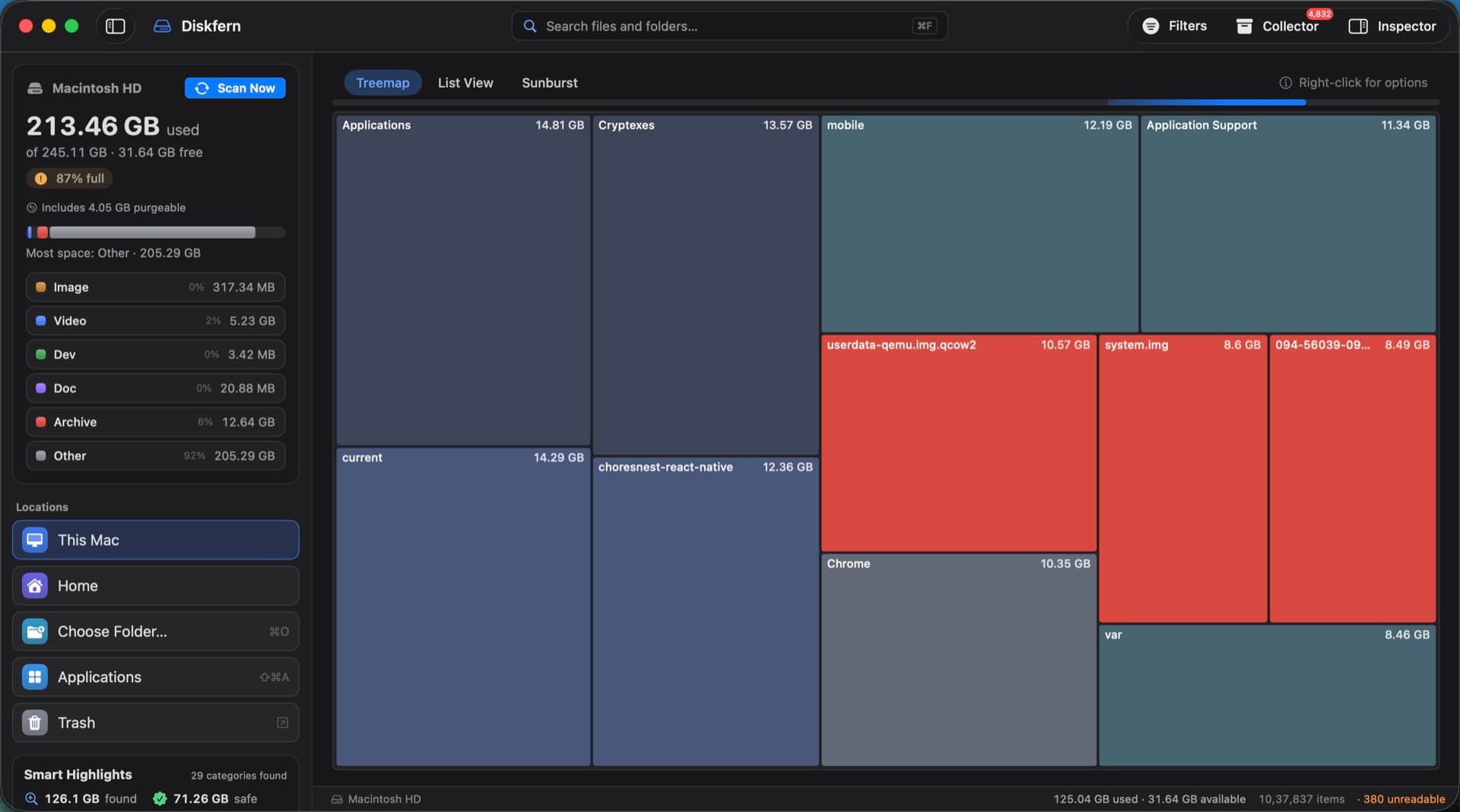
- Open the treemap to see the largest items at a glance, or switch to the list view sorted by size.
- Use Smart Highlights to inspect recognized caches, simulators, Docker storage, and other categories. Category membership alone is not proof that an item is disposable.
- Review the staged items (Safe items first), then move them to the Trash. Protected system files are never offered.
Finding and reviewing is free. Moving items to the Trash from Diskfern is part of Pro.
Find what's safe to deleteQuestions
How much space can I expect to free up?
It depends on what is stored on your Mac and what you can safely remove or move elsewhere. Diskfern shows candidates and their sizes for review; a scan total is not a promise of reclaimable space.
Should I delete my Photos library to save space?
Not as a first step. Consider "Optimize Mac Storage" in Photos settings to keep full-resolution originals in iCloud instead of deleting anything.
Is it safe to use a 'Mac cleaner' app?
Only if it shows you exactly what it will delete before doing so, uses the Trash (not permanent deletion), and never asks you to disable SIP. Be wary of apps that promise large, vague 'junk' numbers with no breakdown.
What if I still need more space after all of this?
Consider moving large media libraries to an external drive or cloud storage, or reviewing large/old files you haven't opened in years (see "Find large files on Mac").

Written by
Diskfern Team
We explain Mac storage using product behavior and the sources listed below. Review your app settings and backups before removing data.
Sources
- Apple Support: Free up storage space on Mac · checked October 19, 2026

Get your space back. Start with a free scan.
Explore the files and folders Diskfern can read. Your files stay on your Mac, and nothing is removed until you say so.
macOS 14 Sonoma or later · Apple silicon and Intel