 Diskfern
Treemap
See your biggest folders before reading a list
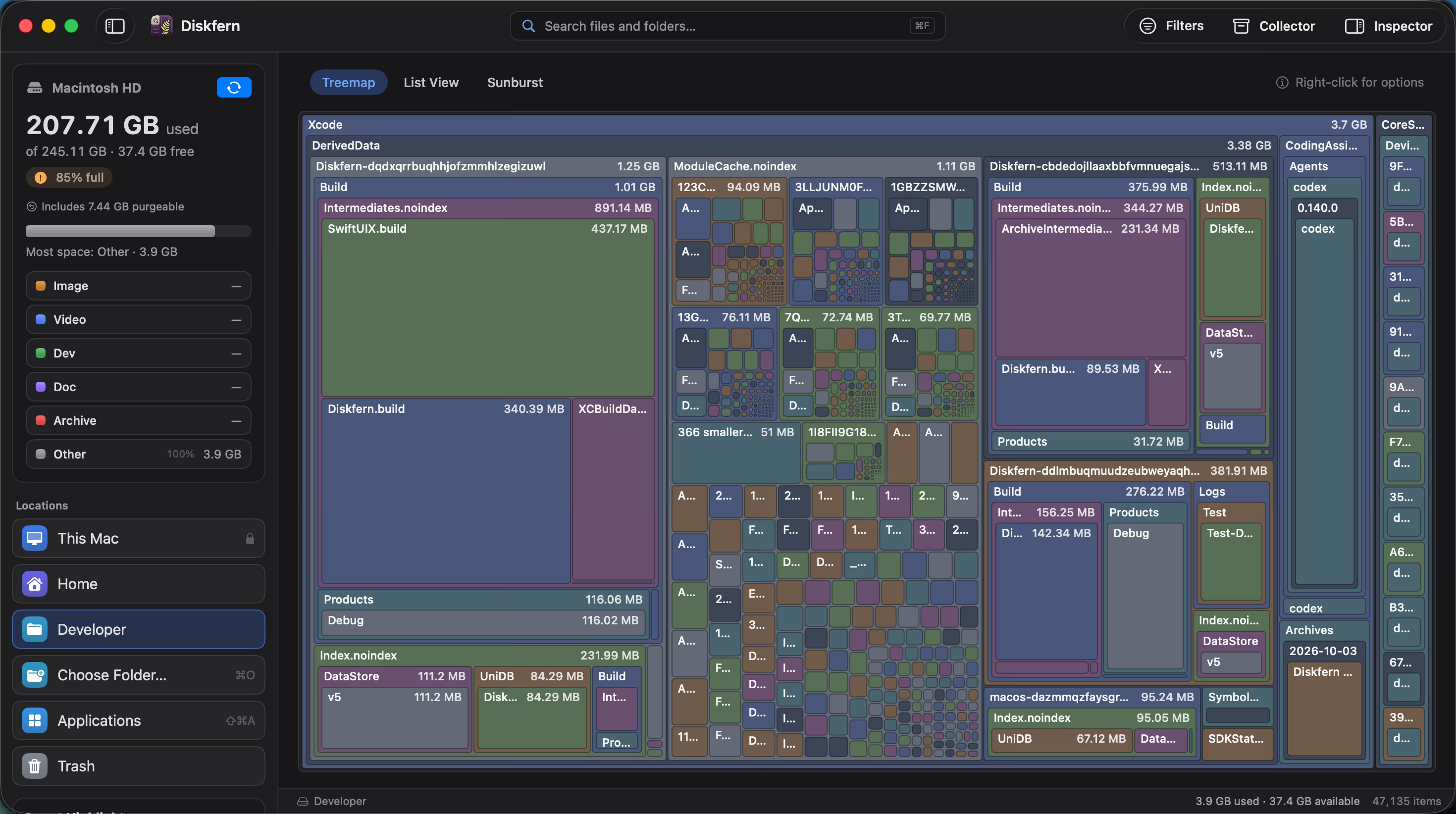
Every rectangle is a real file or folder, sized by the space it uses. The things worth investigating become hard to miss.
Short answer
Treemap turns a folder hierarchy into a visual map. Large blocks use more disk space, colours indicate file kinds, and double-clicking a folder takes you deeper without losing context.
01
Size becomes visible
You can spot a multi-gigabyte folder faster than you can hunt for it through nested Finder windows.
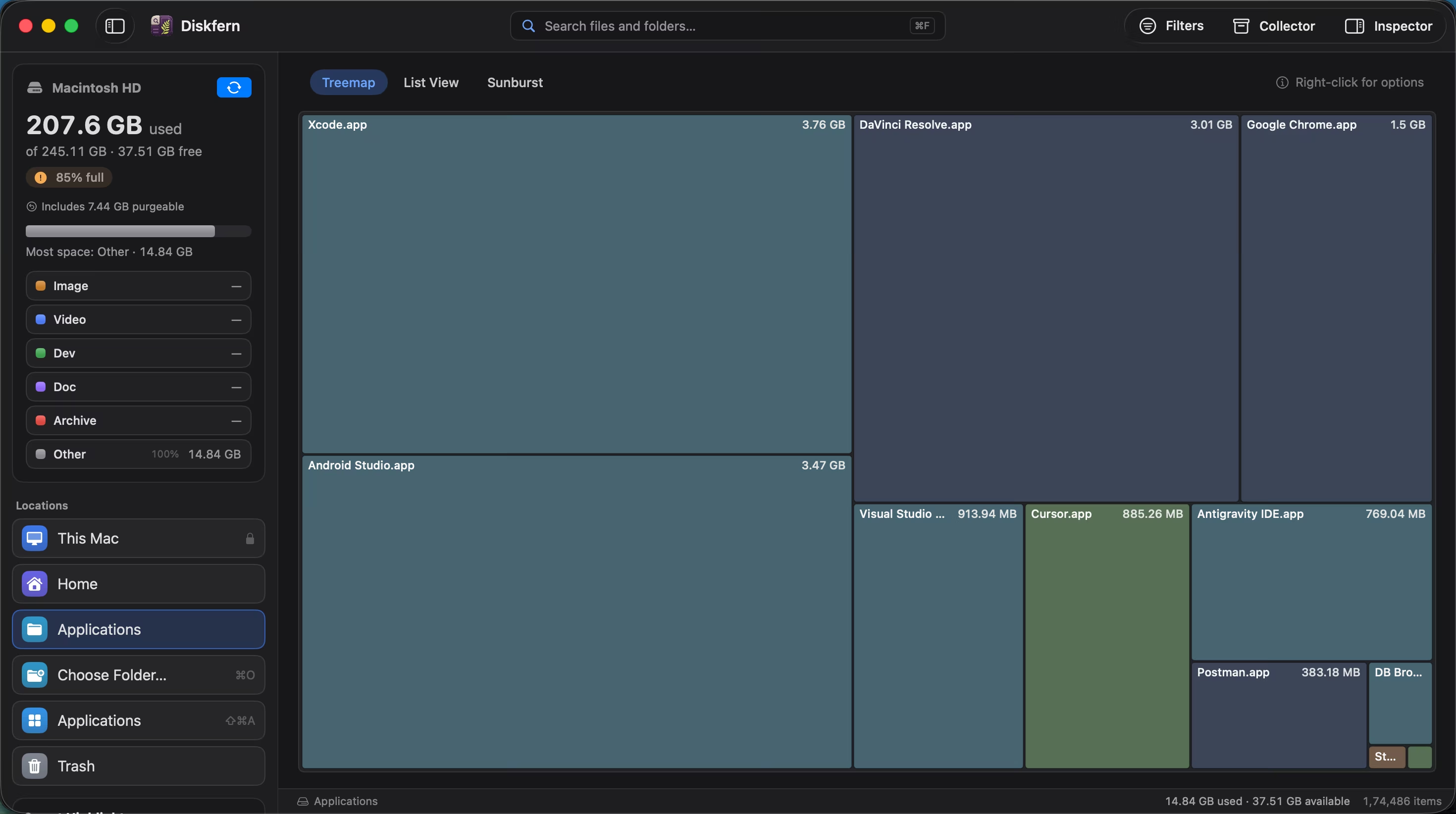
- Area represents disk usage
- Colours show file kinds
- Labels keep names visible
02
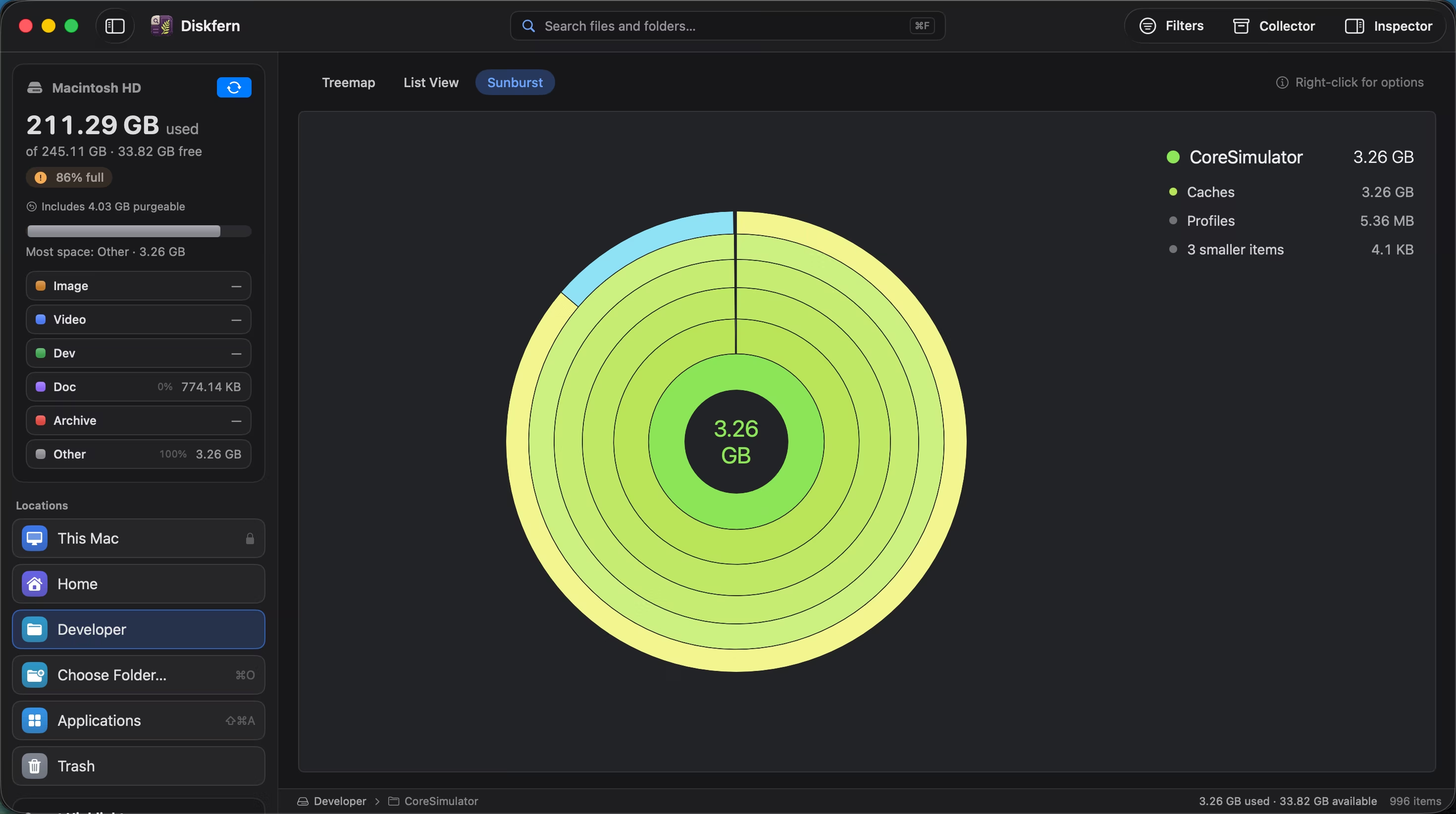
Step inside any folder
Double-click to drill down, then use Back, Forward or Enclosing Folder just like familiar navigation controls.
- Folder drill-down
- Navigation history
- Selection preserved
03
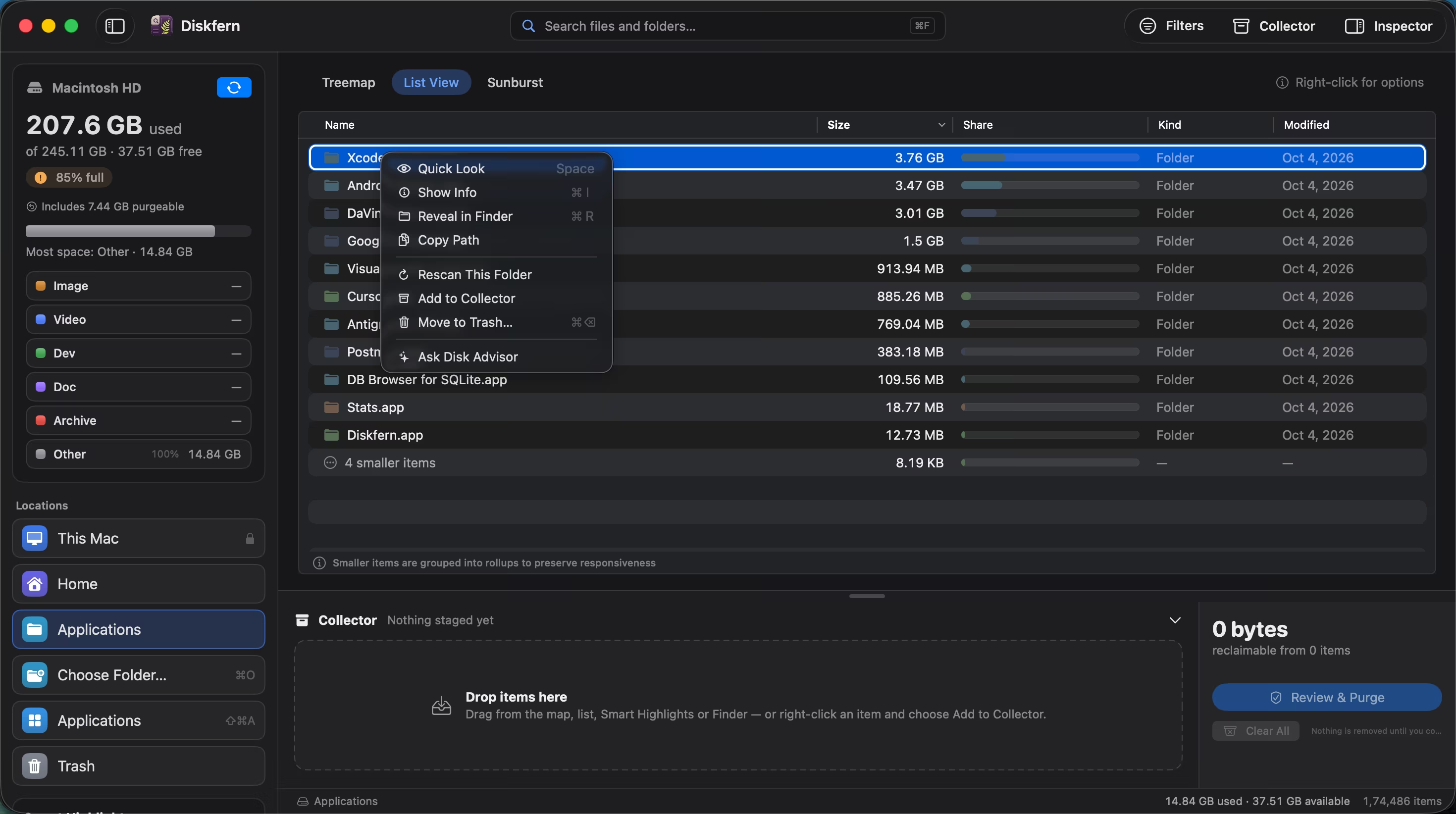
Open the facts from the map
Right-click any block to inspect, preview, reveal, collect or ask Disk Advisor about it.
- Context menu
- Quick Look
- Ask Disk Advisor
Questions about Treemap
What does a larger rectangle mean?
It means that item occupies more space on disk.
Can I open a folder from the map?
Yes. Double-click a navigable folder to drill into it.
Do colours mean safe to delete?
No. Colours indicate file kind; safety labels are separate.
Does the map work during a scan?
Yes. It begins filling in while Diskfern scans.

Get your space back. Start with a free scan.
Explore the files and folders Diskfern can read. Your files stay on your Mac, and nothing is removed until you say so.
macOS 14 Sonoma or later · Apple silicon and Intel