 Diskfern
System Data & macOS
Deleted Files but Mac Storage Is Still Full? Here’s Where the Space Went
You removed a large file, emptied the Trash, and the storage warning is still there. Before deleting more, check what the free-space number is actually measuring.
 Diskfern Team8 min readUpdated
 Short answer
If Mac storage is not updating after deleting files, first check the Trash and the disk being measured. Available space can include purgeable data, while APFS snapshots, shared blocks and other volumes affect accounting. A file’s displayed size does not guarantee the same amount of recovered storage.
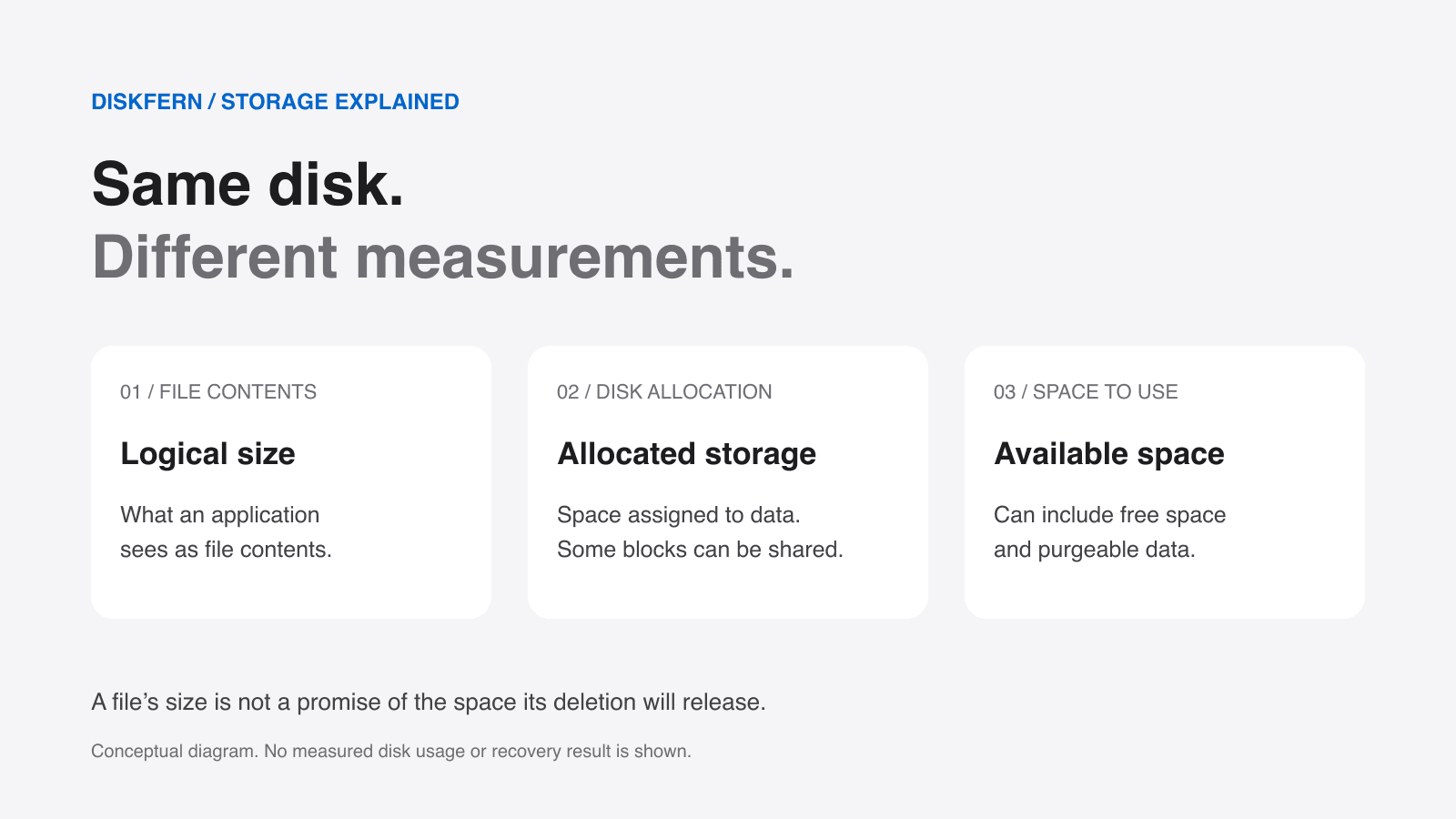
Why is Mac storage not updating after deleting files?
Removing a file and seeing its full displayed size return as free space are different events. The item may still be in the Trash, another filesystem reference may retain its data, or you may be comparing two different definitions of available storage.
On a modern Mac, logical file size, allocated disk space, immediately free space, and the categories in System Settings answer different questions. APFS adds shared containers, snapshots, clones and sparse files. Adding up folder sizes is not always enough to explain the whole disk.
The useful next step is to identify which number changed and which one did not. Deleting another large item before understanding the difference can remove valuable data without resolving the original question.
Read more: Apple: About Apple File System · Apple: disk information and available space
First, make sure the file is actually gone
Moving an item to the Trash does not make its storage available. Review the Trash before emptying it, and keep a backup of anything you may need. Emptying it removes the simplest recovery path.
Also check the owning app. Some apps have their own recently deleted items or deletion controls. Removing something from an app’s list does not always mean its local data has already been removed.
If the file was on an external drive, verify that you are checking that drive’s storage rather than your internal SSD. Leave the drive connected while reviewing its deletion state. Do not clear every Trash location just because one number looks wrong.
Read more: Apple: free up storage space on Mac
Free space and available space are different
A free-space figure describes storage currently unallocated. An available-space figure can also include purgeable data that macOS expects to remove when needed. Disk Utility explicitly includes this distinction in its disk information.
| Storage in this example | Amount | Meaning |
|---|---|---|
| Other allocated data | 400 GB | Storage currently occupied by other data. |
| Purgeable data | 40 GB | Occupied storage that the system may reclaim. |
| Currently unallocated | 60 GB | Space already free. |
In that simplified example, one display could emphasize 60 GB free while another shows roughly 100 GB available, including the purgeable portion. The example ignores filesystem overhead; its purpose is to explain the labels, not predict a particular Mac’s capacity.
Those readouts are not necessarily contradicting each other. Check the label and the selected disk before treating the difference as missing storage. macOS controls when system-managed purgeable data is reclaimed.
Read more: Apple: disk information and available space
APFS snapshots can retain earlier file data
A snapshot preserves an earlier filesystem state. Data needed by that state can remain referenced after the current file changes or is removed. Time Machine can keep local snapshots even when its backup disk is disconnected.
Apple says local snapshots are normally managed automatically and that their storage counts as available. Snapshot retention is a diagnostic possibility, not proof that every unexplained gigabyte is a backup that needs deleting.
Avoid copying snapshot-deletion commands from a forum. If manual management is genuinely necessary, follow Apple’s Time Machine instructions, which describe temporarily changing automatic backup behavior and restoring it afterward. Keep your recovery needs in mind.
Read more: Apple: Time Machine local snapshots
Check the volume and container you are comparing
An APFS container is a shared pool of storage. Its volumes can draw from that pool dynamically, so an individual volume’s figures and the container’s figures do not have the same scope.
Open Disk Utility, choose View > Show All Devices, and identify the physical device, container and volume involved. Inspect their information rather than changing partitions or erasing anything.
When comparing System Settings, Finder, Disk Utility, df, and a disk analyzer, check both scope and terminology. A container total cannot be reconciled by adding a few folders from one volume, particularly when another volume shares the same storage.
Read more: Apple: About Apple File System · Apple: disk information and available space
A 100 GB file may not occupy 100 GB on disk
Logical size describes a file’s contents as presented to applications. Allocated size describes storage assigned to those contents. Sparse files can represent a large logical range without allocating every part, and APFS clones can share unchanged data blocks.
File A ──┐
         ├── shared, unchanged blocks
File B ──┘

Removing A does not free blocks still needed by B.A disk image, virtual machine or copied dataset displaying 100 GB is therefore not a promise of 100 GB back after deletion. Shared references and actual allocation determine what can become free.
This does not make the file-size figure useless. It means the number needs a label. Compare the same measurement before and after the operation instead of subtracting a logical file size from a filesystem’s free-space total.
Read more: Apple: About Apple File System
What if a file scan cannot explain the whole disk?
A scan of readable files is not a complete APFS accounting report. If its total differs from the filesystem’s usage figure, classify the difference before deciding that more files must be removed.
- The scan may cover a folder or volume while the comparison figure covers the container.
- Permissions, exclusions or protected locations may keep some paths outside the scan.
- Snapshots or another volume may retain storage outside the current file tree you inspected.
- Shared blocks, sparse allocation, purgeable data and different units can change how totals are presented.
Full Disk Access can improve visibility, but it does not turn a file scan into a snapshot manager or guarantee a match with macOS’s System Data category. System Data is a classification, not a folder you can safely empty.
Read more: Apple: free up storage space on Mac · Apple: About Apple File System
When to stop cleaning and check the disk
Do not delete unfamiliar data from /System, /Library, /private/var, or app containers to make an accounting difference disappear. Do not disable System Integrity Protection. A large size does not establish that the contents are disposable.
A confusing total is different from a reported filesystem error. If Disk Utility identifies errors, follow Apple’s First Aid workflow. If it reports failing storage, preserve your data and follow the hardware guidance instead of trying to clean the failure away.
If your Mac still cannot complete a download or installation despite apparently sufficient available storage, record the exact error and the disk involved. That is more useful for diagnosis than removing another unrelated file.
Check storage in this order
Use the built-in tools first. The aim is to identify the cause before making another deletion decision.
- 1
Review the original item and the relevant Trash.
Empty the Trash only after confirming you do not need its contents and have preserved important data.
- 2
Open System Settings > General > Storage.
Note the selected disk, the labels and the amounts. Category totals and immediately free space are different views.
- 3
Inspect the same storage device in Disk Utility.
Choose View > Show All Devices. Compare the relevant container and volume information without changing their layout.
- 4
Consider snapshots and system-managed storage.
Apple normally manages local Time Machine snapshots automatically. Do not begin by removing them.
- 5
Inspect the readable files and folders.
Identify the owning app and confirm the scan scope and permissions. A mismatch is a clue to investigate, not a deletion target.
- 6
Make a separate decision about any further cleanup.
Compare the expected benefit with recovery options and risk, then recheck the same storage measurement afterward.
The Diskfern way
How Diskfern helps
Map the files before deleting more
- Scan the relevant folder or drive and use Treemap or List to identify large readable paths.
- Inspect an item’s location and owning app before deciding whether it is replaceable.
- Review every removal and its selected mode. Trash is the default; it does not reclaim the space until emptied.
- Rescan after cleanup. Diskfern helps explain file usage; it does not certify exact reclaimable space or manage APFS snapshots.
Finding and reviewing is free. Moving items to the Trash from Diskfern is part of Pro.
Scan your Mac freeQuestions
Why did I delete 50 GB but my Mac is still full?
The item may remain in the Trash, its logical size may exceed its allocation, or other references such as snapshots or clones may retain blocks. You may also be comparing free storage with available storage. Check the same disk and measurement before deleting more.
Does emptying the Trash always return the file’s displayed size?
No. It removes the trashed item, but shared blocks, snapshots and sparse allocation can change the amount of physical storage that becomes free. The displayed size alone cannot predict the result.
Should I delete Time Machine snapshots to fix System Data?
Do not assume snapshots are the cause. Apple counts local snapshot storage as available and normally manages it automatically. Follow Apple’s guidance if manual management is necessary, preserving the backups and recovery options you need.
Can Diskfern recover all the missing space automatically?
No. Diskfern helps inspect readable files and folders. It does not promise a match with macOS category totals, exact recovered space, or automatic removal of snapshots and system-managed data.

Written by
Diskfern Team
We explain Mac storage using product behavior and the sources listed below. Review your app settings and backups before removing data.
Sources
- Apple: free up storage space on Mac · checked October 19, 2026
- Apple: disk information and available space · checked October 19, 2026
- Apple: Time Machine local snapshots · checked October 19, 2026
- Apple: About Apple File System · checked October 19, 2026
- Apple: repair a storage device with Disk Utility · checked October 19, 2026

Get your space back. Start with a free scan.
Explore the files and folders Diskfern can read. Your files stay on your Mac, and nothing is removed until you say so.
macOS 14 Sonoma or later · Apple silicon and Intel