 Diskfern
Developer storage
How to Clear Xcode Storage on Mac (DerivedData, Archives, Simulators)
Xcode rebuilds what it needs. Its caches, old device support files, and unused simulators don't need to stay on disk forever.
 Diskfern Team7 min readUpdated
 Short answer
DerivedData, old Archives, outdated device support files, and unused Simulator runtimes are the main places Xcode stores reclaimable space. DerivedData and device-support files are safe to delete because Xcode rebuilds them. Archives and simulators are safe once you confirm you do not need them, since archives cannot be regenerated and simulators require another download.
Is it safe to delete DerivedData?
Yes. DerivedData holds build products, indexes, and caches that Xcode regenerates automatically the next time you build a project. Deleting it can cause a slightly longer first build afterward. Your source code and project settings are not affected.
Can I delete old iOS Simulator runtimes?
Yes, if you don't need to test against that specific OS version anymore. Removing a simulator runtime frees several gigabytes per version, but you'll need to re-download it from Xcode → Settings → Platforms if you need it again, which requires an internet connection and some time.
Are Xcode Archives safe to delete?
Be more careful here. Archives (.xcarchive) are the exact build artifacts used for App Store submissions and crash-symbolication (dSYMs). Once deleted, they can't be regenerated from source code alone in a way that preserves the same debug symbols for past crash reports. Review this folder before deleting, and keep archives for any version currently live on the App Store.
Keep archives for shipped versions
If you need to symbolicate crash reports from a version that's live in the App Store, keep its archive.
What’s safe to delete?
DerivedData
Safe~/Library/Developer/Xcode/DerivedData
Xcode rebuilds it on the next build; first build after deletion takes longer.
How: Xcode → Settings → Locations → arrow next to Derived Data, then delete the folder, or delete via Finder.
Old device support files
Safe~/Library/Developer/Xcode/iOS DeviceSupport (and watchOS/tvOS equivalents)
Re-downloaded automatically when you connect a device running that OS version.
How: Delete folders for OS versions you no longer test on.
Unused Simulator runtimes
Review firstXcode → Settings → Platforms
Frees several GB per runtime; needs re-download (network + time) if needed again.
How: Xcode → Settings → Platforms → hover a runtime → the delete (trash) icon.
Old Archives (.xcarchive)
Review first~/Library/Developer/Xcode/Archives
Can't be regenerated with identical debug symbols; keep archives for shipped App Store versions.
How: Xcode → Window → Organizer → Archives tab → select → Delete, after confirming you don't need it.
Xcode application bundle itself
Don't touch (unless uninstalling)/Applications/Xcode.app
Removes Xcode entirely; only do this if you intend to uninstall it.
How: Use the app uninstaller if you're removing Xcode entirely, not a manual partial delete.
Quit Xcode first
Clearing DerivedData while Xcode is running can cause build errors until you restart it.
Do it manually
No app needed. These steps use Finder, Terminal, and each tool’s own settings.
- 1
Quit Xcode before clearing any of its caches.
- 2
Open DerivedData and move its contents to the Trash.
$open ~/Library/Developer/Xcode/DerivedDataSelect the folders inside and press ⌘⌫. They go to the Trash, so you can still put them back until you empty it.
- 3
Review and remove old device support files for OS versions you no longer use.
$open ~/Library/Developer/Xcode/iOS\ DeviceSupport - 4
Remove unused simulator runtimes from Xcode → Settings → Platforms.
- 5
Review Archives in Xcode → Window → Organizer before deleting any.
The Diskfern way
How Diskfern helps
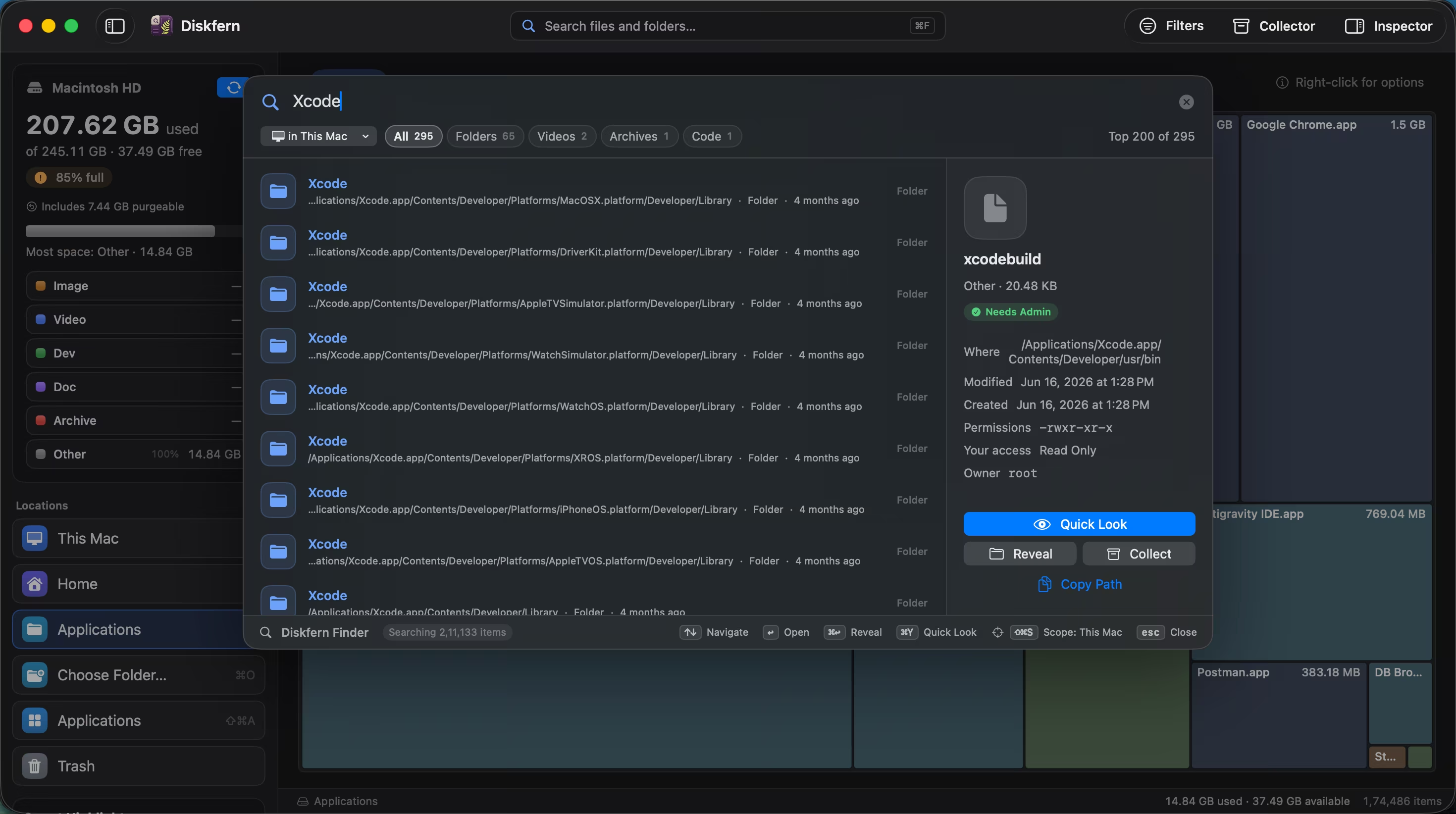
Diskfern recognizes Xcode's storage categories automatically as part of its 44 Smart Highlight categories for developer clutter.
- Scan your Mac with Diskfern.
- Open Smart Highlights and look for Xcode, Simulators, and DerivedData categories.
- See the real size of each. In one measured scan, developer tool caches were a major contributor to System Data.
- Review and move Safe items to the Trash; Review items (like old archives) are flagged for a closer look before you confirm.
Finding and reviewing is free. Moving items to the Trash from Diskfern is part of Pro.
See exactly how much Xcode uses on your MacQuestions
Will deleting DerivedData break my project?
No. DerivedData is purely a build cache and index store. Your source files, project settings, and git history are untouched.
How much space does Xcode typically use?
This varies widely by how many simulators, device support files, and archives have accumulated. There is no single reliable number. Use a disk-space analyzer to see your Mac's breakdown instead of relying on a generic estimate.
Can I just delete the whole Xcode Developer folder?
Not recommended. ~/Library/Developer contains a mix of safe-to-delete caches and things you may still want (like archives). Go category by category instead.
Does Xcode clean up DerivedData automatically?
Xcode does some automatic cache eviction over time, but it doesn't aggressively prune DerivedData, so manual clearing periodically is common practice among developers.
What's the safest order to clean up Xcode storage?
Start with DerivedData, then old device support files, unused simulators, and archives last. Review archives most carefully because they are not easily regenerated.

Written by
Diskfern Team
We explain Mac storage using product behavior and the sources listed below. Review your app settings and backups before removing data.
Sources
- Apple Developer Documentation: Xcode · checked October 3, 2026

Get your space back. Start with a free scan.
Explore the files and folders Diskfern can read. Your files stay on your Mac, and nothing is removed until you say so.
macOS 14 Sonoma or later · Apple silicon and Intel